Written by: Doug Camplejohn, CEO & Co-Founder, Coffee
Key Takeaways
-
Audit and cleanse source data before any Salesforce migration to avoid importing legacy issues that cause post-migration failures.
-
Map relationships, deduplicate records, and define field mappings explicitly to preserve data integrity when moving from systems like HubSpot.
-
Choose the right migration tool based on volume and complexity, then run a full sandbox rehearsal with automations frozen before production waves.
-
Validate record counts, relationships, and dashboards after migration to confirm ownership rules and reporting accuracy remain intact.
-
Deploy Coffee as an agent layer immediately after go-live to automate ongoing data capture and enrichment so Salesforce stays clean without manual entry.
Step 1: Fix Data Quality Before You Touch Salesforce
Pre-migration data quality determines post-migration outcomes. Enterprise-scale data migration typically takes six to eighteen months, including data cleansing, field mapping, and integrity testing, which is wasted effort if the source data is not audited first.
Before any export, work through this pre-migration checklist:
-
Identify active fields. Audit which fields are actually used by the team and flag legacy cruft nobody touches. Migrating unused fields imports noise, not value.
-
Deduplicate at the source. Use Salesforce’s duplicate management tools to find and merge duplicate records on key objects such as Accounts and Contacts before import.
-
Document overwrite behavior. Create explicit mappings for every field, documenting the source field, target field in Salesforce, any data transformation, and whether new data replaces existing values or only fills blanks.
-
Protect sensitive internal data. Mark proprietary fields such as competitive intelligence from sales conversations as protected so they are never overwritten during enrichment or migration.
-
Prioritize active records. Focus cleansing effort on active pipeline, engaged leads, and target accounts rather than enriching everything, and re-enrich active records quarterly because about 30% of B2B contacts change roles annually.
-
Clean the schema first. Clean up the Salesforce schema before migration, or good external data will be poured into a messy structure and create new inconsistencies.
-
Establish governance standards. Strong governance frameworks, including policies around data ownership, schema change management, and data quality controls, help maintain data integrity over time.
Step 2: Pick the Right Salesforce Migration Tool
Once your source data is audited and cleansed, the next decision is which tool will actually move that data into Salesforce. Tool selection depends on record volume, automation requirements, and compliance posture. Third-party ETL connectors often require Salesforce editions that support API access. The table below compares the four most commonly evaluated options in 2026.
|
Tool |
Best-Fit Volume |
Automation Handling |
Compliance Notes |
|---|---|---|---|
|
Salesforce Data Loader |
Native; suited for teams with DevOps capacity and Salesforce-centric workflows |
Native Salesforce trust model, no additional SOC 2 review required |
|
|
Salesforce Import Wizard |
Low-volume, contained migrations; no warehouse integration |
No bulk automation controls, manual pre-load freeze required |
Native Salesforce trust model, no additional SOC 2 review required |
|
Skyvia |
Mid-volume; suited when cross-source joins with warehouses or analytics are needed |
Third-party tools require assembling ingestion, warehouse, and BI layers, which increases maintenance overhead |
Vendor SOC 2 Type 2 certification should be verified directly with Skyvia before contract |
|
MuleSoft |
High-volume, multi-source enterprise migrations that need broader modern data stack integration |
Beyond technical capabilities, pricing structure deserves careful attention. Consumption-priced third-party tools can see costs inflated by high data volumes, which often increases projected costs and becomes a hidden cost to model before signing any third-party contract.
Explore Coffee’s pricing to see how an agent layer reduces post-migration data quality spend.
Step 3: Handle HubSpot to Salesforce Relationship Mapping
HubSpot-to-Salesforce migrations carry specific relationship-mapping risks that generic migration guides ignore. HubSpot’s contact-centric model does not map directly to Salesforce’s account-contact-opportunity hierarchy, and the mismatch produces orphaned records and broken pipeline reporting if you do not resolve it before import.
Use these tactics for this specific migration path:
-
Map HubSpot Deals to Salesforce Opportunities explicitly. HubSpot Deals attach to Contacts, while Salesforce Opportunities attach to Accounts. Every Deal must be re-parented to an Account before import or the relationship is lost.
-
Resolve Contact-to-Account ambiguity. HubSpot allows a Contact to exist without a Company. Salesforce best practice requires every Contact to link to an Account. Identify all unaffiliated Contacts in HubSpot and assign them to an Account record, even a placeholder, before migration.
-
Deduplicate before import, not after. HubSpot’s more permissive duplicate rules mean your export will contain duplicate Contacts and Companies. Standardize picklist values, archive stale records, and reassess required fields before the load to improve data quality that affects reporting, automation, and workflows.
-
Audit HubSpot workflows before export. Any HubSpot workflow that fires on Contact property changes may have written inconsistent data to fields over time. Profile those fields with a data quality tool before treating them as migration-ready.
Step 4: Rehearse the Migration in a Salesforce Sandbox
No production migration should run without a full sandbox rehearsal. The sandbox phase catches automation conflicts, validation rule failures, and relationship errors before they corrupt live data.
Follow this sandbox protocol:
-
Freeze and audit automations before any data load. Review existing automations and integrations, including flows, triggers, and API connections, before migration, and document which processes will be paused and who will approve reactivation to prevent unintended customer notifications or workflow loops during data loads. Identify every automation on each object the migration touches, the order of execution, and cross-object dependencies, because automations can cascade unexpectedly and breach the 10-second Apex CPU time limit during migration windows.
-
Make validation rules agent-aware. Validation rules must include bypass conditions for any automated process or agent user to prevent FIELD_CUSTOM_VALIDATION_EXCEPTION errors on programmatically created records.
-
Run post-load validation reporting. Post-migration validation requires comparing source and destination record counts, cross-checking complex relationships such as contacts linked to accounts and opportunities, and running business-critical dashboards to confirm data integrity and ownership rules.
-
Review success and failure logs completely. A complete post-migration validation cycle includes reviewing success and failure logs, investigating skipped or rejected records, and confirming that no unintended automations fired during the cutover so you establish a clean baseline.
Step 5: Choose Between Salesforce Data Loader and Import Wizard
The choice between Data Loader and Import Wizard depends on volume, complexity, and whether the migration must be repeatable.
Use Import Wizard when the record volume is low, under 50,000 records, the object types are standard such as Leads, Contacts, Accounts, and Opportunities, no custom automation bypass logic is required, and the migration is a one-time event. Import Wizard runs in the browser with no installation and suits teams without Salesforce admin depth.
Use Data Loader when volume exceeds 50,000 records, the migration involves custom objects, the load must be scripted and repeatable across multiple waves, or the team needs granular success and error logs per record. Native Salesforce tooling such as Data Loader can reduce the need for a multi-tool stack, but for teams without internal operational expertise the real cost is engineering time, complexity, and ongoing maintenance rather than software license price.
For migrations that must integrate with external warehouses or analytics sources beyond Salesforce CRM data, neither native tool is sufficient. Native Salesforce reporting is limited to CRM data, so organizations needing cross-source joins must use third-party ETL tools to move data into a warehouse or all-in-one platform.
Step 6: Validate Production Loads and Protect Reporting
Production waves should mirror your sandbox rehearsal so validation feels routine, not experimental. After each wave, compare record counts, spot-check key relationships, and confirm that dashboards and ownership rules behave as expected.
Teams that treat validation as a checklist item rather than a decision gate often miss subtle relationship breaks. Treat each validation cycle as a go or no-go decision for the next wave so you catch issues before they spread across the full dataset.
Step 7: Avoid the Post-Migration Data-Entry Trap
Even a perfectly executed migration using the right tools and following every step above will fail if data quality collapses after go-live. Clean migration data does not stay clean. The structural problem is not the migration itself, but what happens after go-live when reps are expected to maintain data quality manually.
Adoption rates often start below industry averages, with incomplete data entry by reps leaving pipeline accuracy poor in post-migration environments. Without intervention, that situation does not recover on its own and usually worsens as reps develop workarounds. A company migrating to Salesforce can experience limited adoption six months post-launch, with some reps reverting to spreadsheets and pipeline accuracy remaining poor, which shows how early resistance hardens into permanent workflow fragmentation.
The cause is structural, not motivational. Salesforce’s mobile app received 4.8 stars on iOS and 4.1 stars on Android according to current app store listings, which indicates that the interface itself is well designed, yet reps still resist using it consistently. The resistance is not about the app’s usability, but about the friction of manual data entry competing directly with selling time.
No training program, enforcement policy, or dashboard review cadence solves a structural friction problem. The only durable fix is removing the manual requirement entirely.
Step 8: Deploy the Coffee Agent Layer After Go-Live
The seven steps above produce a clean Salesforce instance on go-live day. The Coffee Companion App keeps it clean every day after that.
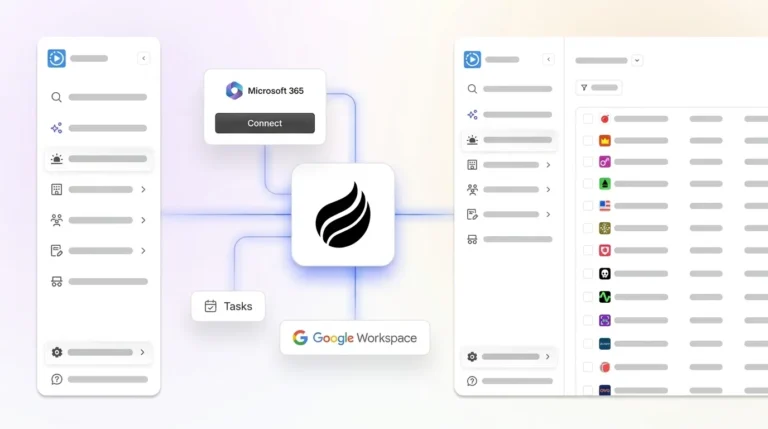
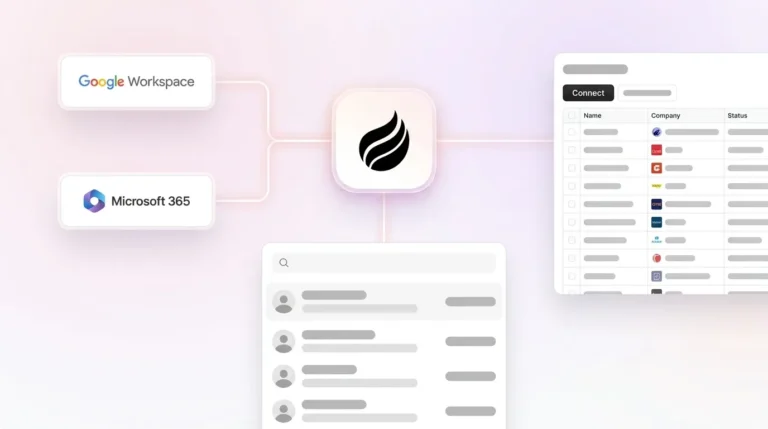
Coffee deploys as an agent layer directly on top of your existing Salesforce instance. After you connect Google Workspace or Microsoft 365, the Coffee Agent begins ingesting emails, calendar events, and call transcripts, the unstructured data that legacy CRMs cannot process, and writes structured, enriched records back to Salesforce automatically. Contacts are created, activities are logged, deal states are updated, and meeting summaries with next steps are filed, all without a rep touching the CRM.
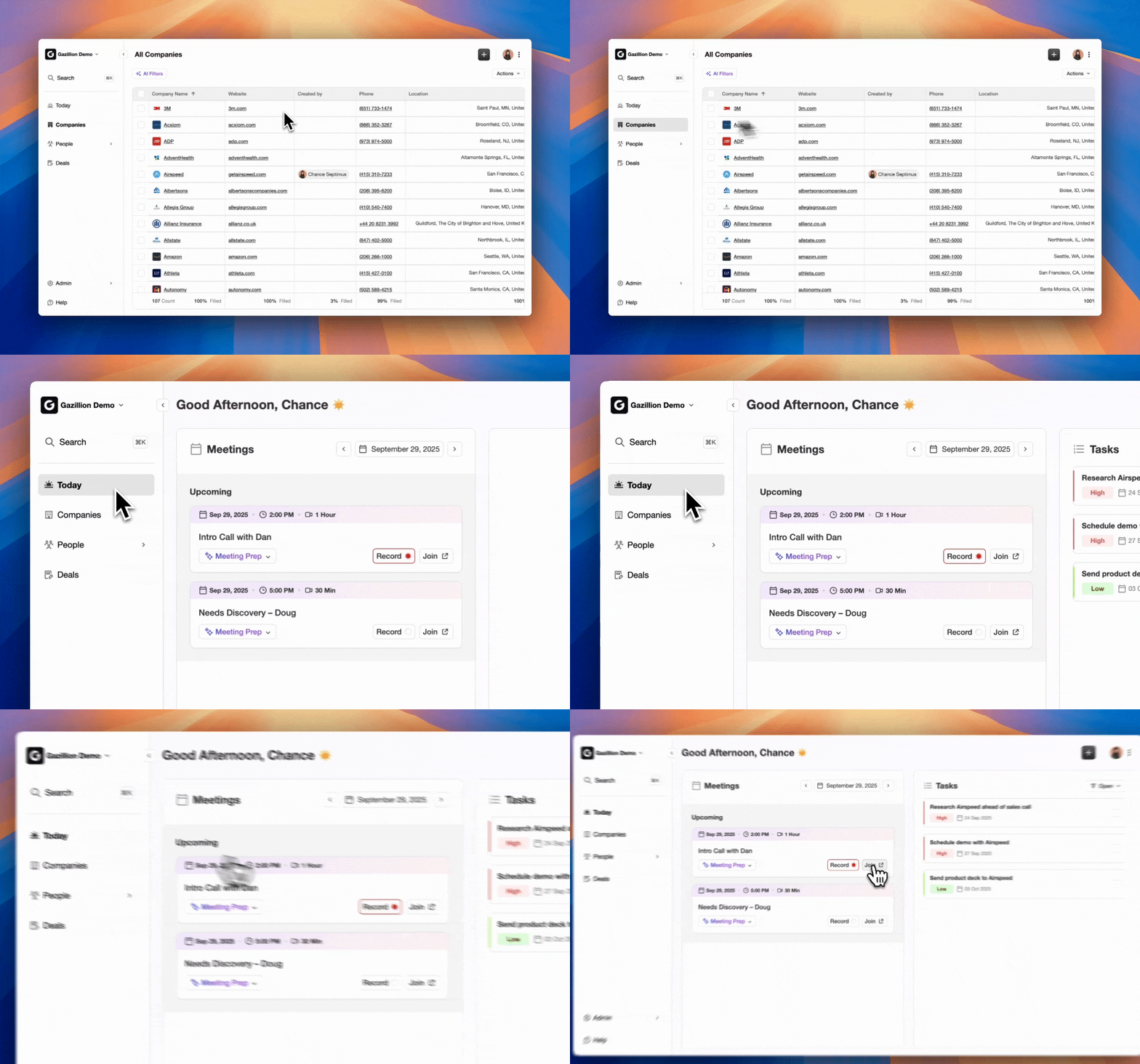
This directly addresses the adoption failure described above. When reps are not required to enter data, the data-entry trap disappears. Teams using Salesforce plus external tools achieved a 7.8/10 data quality score, with sync issues and incomplete activity logging common when multiple logins were required, and Coffee removes that fragmentation by acting as the single agent that unifies all data streams into one coherent Salesforce record.
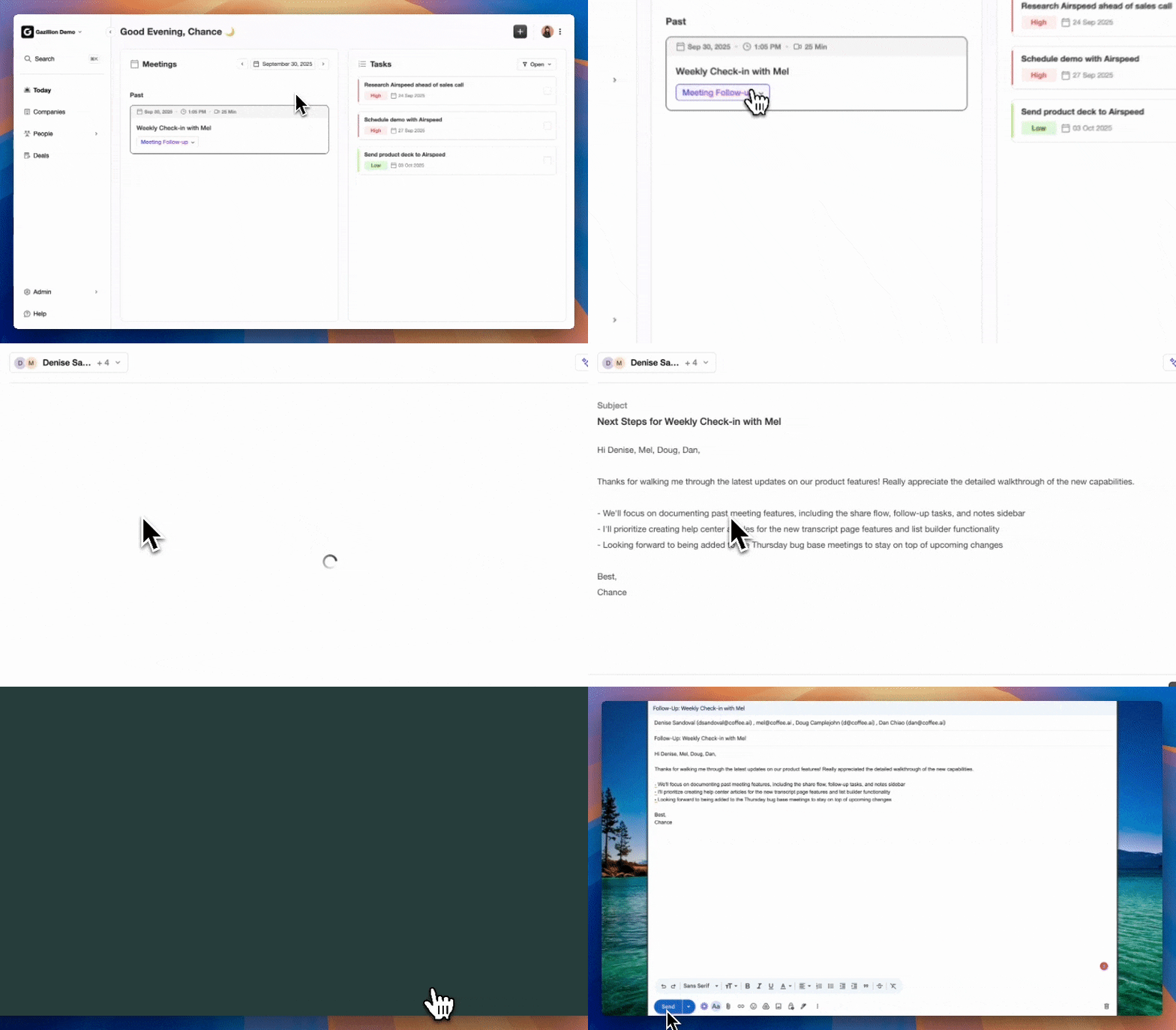
The Coffee Agent also handles post-migration enrichment continuously. It augments records with job titles, funding data, and LinkedIn profiles via licensed data partners, and its Pipeline Compare feature visualizes week-over-week changes automatically, which replaces the manual CSV exports that RevOps teams currently run before every forecast call.

For teams evaluating the broader agentic data management landscape, Informatica introduced an agentic multidomain MDM system designed to let AI agents continuously cleanse, steward, and enrich master data in real time instead of relying on slower manual MDM processes, which signals that the industry has confirmed the agent layer as the correct architectural answer to data quality at scale. Coffee delivers that answer specifically for mid-market Salesforce teams without enterprise implementation overhead.
Deploy Coffee’s agent layer today to automate Salesforce data capture from day one.
Conclusion
A successful Salesforce migration requires executing all eight steps in sequence: auditing source data, defining the data model, selecting the right tool, mapping relationships, testing in sandbox with automations frozen, migrating in production waves, validating record integrity, and deploying an agent layer before go-live. Skipping any step, especially the last one, recreates the same manual-data failure that made the prior system unreliable.
The 58% Week 2 adoption rate and 34% six-month adoption rate are not Salesforce-specific anomalies. They are the predictable outcome of any system that relies on humans to maintain data quality. The Coffee Companion App removes that dependency by automating capture and enrichment from day one so good data enters Salesforce and accurate insights come out without adding work for your reps.
Frequently Asked Questions
How long does a Salesforce data migration typically take for a mid-market company?
For mid-market B2B companies, a Salesforce data migration typically takes between four and twelve weeks from initial data audit to production go-live, depending on the volume of records, the number of custom objects, and the complexity of integrations with external tools. The pre-migration audit and deduplication phase is often the longest, because it requires resolving relationship mapping issues and standardizing field values before any data is loaded. Teams that skip the audit phase and load dirty data directly into Salesforce extend the total project timeline significantly because post-migration cleanup is far more disruptive than pre-migration cleanup. Using a sandbox environment for a full rehearsal migration adds one to two weeks but reduces the risk of production failures that require rollback.
What is the most common reason Salesforce migrations fail post-go-live?
The most common reason Salesforce migrations fail after go-live is not a technical data error, but adoption collapse. Reps who were not involved in the migration process, or who find the CRM interface more burdensome than their prior tools, revert to spreadsheets and personal notes within weeks. This produces incomplete activity logging, stale deal stages, and inaccurate pipeline forecasts that undermine the business case for the migration entirely. The structural cause is that legacy CRMs, including Salesforce, require humans to act as data entry clerks. Without an automated agent capturing emails, calls, and calendar activity and writing that data back to Salesforce, the system depends on rep discipline, which degrades under selling pressure. Deploying an agent layer like the Coffee Companion App before go-live removes the manual requirement and prevents adoption collapse from occurring.
Should I use Salesforce Data Loader or the Import Wizard for my migration?
The decision depends on record volume and migration complexity. The Import Wizard is appropriate for straightforward, one-time migrations of standard objects such as Leads, Contacts, Accounts, and Opportunities at volumes under 50,000 records. It runs in the browser, requires no installation, and is accessible to teams without deep Salesforce admin expertise. Data Loader is the correct choice when record volumes are higher, when the migration involves custom objects, when the load must be scripted and repeatable across multiple waves, or when the team needs granular per-record success and error logs for post-migration validation. For migrations that must integrate Salesforce data with external warehouses, analytics platforms, or multi-source reporting, neither native tool is sufficient and a third-party ETL solution should be evaluated alongside the native options.
What specific steps are required when migrating from HubSpot to Salesforce?
A HubSpot-to-Salesforce migration requires additional relationship-mapping work that generic migration guides do not address. HubSpot’s contact-centric data model does not align directly with Salesforce’s account-contact-opportunity hierarchy, so every HubSpot Deal must be explicitly re-parented to a Salesforce Account before import. Contacts that exist in HubSpot without an associated Company must be assigned to an Account record in Salesforce, even a placeholder, to prevent orphaned records. External IDs should be configured during field mapping to preserve parent-child relationships and allow incremental updates without overwriting existing data. Deduplication must be completed at the source before export, because HubSpot’s more permissive duplicate rules typically produce a higher duplicate rate than Salesforce’s data model tolerates. Finally, any HubSpot workflow that has written inconsistent data to contact properties over time should be profiled with a data quality tool before those fields are treated as migration-ready.
How does the Coffee Companion App work with an existing Salesforce instance?
The Coffee Companion App deploys as an agent layer on top of an existing Salesforce instance without replacing it. After a simple authentication connecting Google Workspace or Microsoft 365, the Coffee Agent begins reading emails, calendar events, and call transcripts to automatically create contacts, log activities, and update deal records in Salesforce. It enriches records with job titles, funding data, and LinkedIn profiles through licensed data partners, which removes the need for separate enrichment tools. After meetings, the agent generates summaries, identifies next steps, and drafts follow-up emails for rep review. The Pipeline Compare feature tracks week-over-week pipeline changes automatically, replacing manual CSV exports before forecast reviews. Because the agent handles all data capture and enrichment autonomously, reps are not required to enter data manually, which eliminates the adoption failure that causes most Salesforce deployments to produce inaccurate pipeline data within months of go-live. Coffee is SOC 2 Type 2 and GDPR compliant, and customer data is not used to train public models.