Written by: Doug Camplejohn, CEO & Co-Founder, Coffee | Last updated: September 6, 2026
Key Takeaways
- Auto-populating CRM from email removes manual data entry by extracting contact details, company information, and conversation context from emails and calendars.
- Native CRM integrations like HubSpot AI Email Enrichment and Salesforce Einstein Activity Capture offer quick setup but only log activities without rich context from unstructured email content.
- Third-party automation tools like Zapier and Make provide flexible workflows through email parsers but require ongoing rule maintenance and can break silently when field configurations change.
- AI agents like Coffee create contacts and companies, enrich data with job titles and LinkedIn profiles, and log activities without manual rules or maintenance.
Why Auto-Populating CRM From Email Matters
Manual data entry slows revenue teams and drains selling time. Research shows consistent patterns across organizations: reps lose time to admin work, data decays quickly, duplicates accumulate, and poor data quality carries a direct financial cost.
- Sales reps spend only 28% of their week actually selling, with CRM admin consuming up to 17% of work hours.
- B2B contact data decays by 30% annually, and around 90% of CRM contact records are incomplete.
- Poor data quality costs organizations an average of $12.9 million per year, and 76% of CRM users admit less than half their data is accurate.
- CRM databases accumulate duplicates at 1–5% per month, so after a year without deduplication, 10–30% of records may be duplicates.
Automating email-to-CRM population addresses these issues directly. 64% of reps who use automation tools save 1–5 hours per week compared to teams without them, and integrated CRM-email systems can slash manual data entry by 50–60% and boost email conversion rates by an average of 23%.
Method 1: Native CRM Integrations (Built-In Email Sync)
Native CRM email integrations log emails and often extract basic contact data automatically. These options are fast to configure but stay limited to each CRM’s ecosystem and focus on activity logging rather than deep context.
HubSpot: AI Email Enrichment
HubSpot’s AI Email Enrichment scans email signatures and message bodies to update contact properties when emails are logged. Setup steps:
- Navigate to Settings → Data Management → AI Email Enrichment.
- Toggle on “Automatically enrich contacts from email signatures.”
- Connect your Gmail or Outlook inbox via OAuth (Google Workspace or Microsoft 365).
- Install the HubSpot Sales Chrome extension (Gmail) or Office 365 add-in (Outlook).
- Test with a single record before enabling full sync.
The most common logging problems trace back to the never-log list, which often includes the company’s own domain and causes internal emails to skip the CRM by design. Check that list first before troubleshooting the connection itself.
Salesforce: Einstein Activity Capture
Salesforce’s Einstein Activity Capture (EAC) automatically syncs emails and calendar events to Contacts, Leads, and Opportunities. Setup requires:
- Enable Enhanced Email in Setup as a prerequisite.
- Install the Outlook Integration or Gmail Integration from the AppExchange.
- Assign the correct permission set to users.
- Create an Einstein Activity Capture configuration and assign users or profiles.
- Complete admin consent in Microsoft Entra (for Outlook) or Google Admin Console (for Gmail).
The Summer ’25 release introduced “Sync Email as Salesforce Activity,” which converts captured emails into native EmailMessage records, making them reportable and usable in Flows. Also note: Salesforce for Outlook retires December 31, 2027, so teams should migrate to the Outlook Integration plus EAC before that date.
Zoho and Pipedrive
Zoho CRM’s native email integration connects Gmail or Outlook and associates emails with leads and contacts. Configuration options such as sync period, auto-association, and folder mapping live under Settings → Channels → Email. Pipedrive’s email sync logs inbound and outbound messages against the correct deal and can auto-create new contacts from email threads.
The limitation shared by all native integrations appears in how they treat email content. These tools record that an email occurred but do not interpret deal stage, next steps, or qualification signals from unstructured text. Teams that need this level of context move to third-party automation or AI agents.
Method 2: Third-Party Automation With Zapier Or Make
Teams that outgrow native features often adopt no-code automation platforms that parse email data and write it to the CRM. This approach relies on an email parser to extract fields from email content and then map them into CRM properties.
Step-By-Step: Gmail To HubSpot Via Zapier
- Set up an email parser. Use Zapier’s Email Parser or a dedicated tool like Mailparser. Create a dedicated parsing mailbox such as parse@yourdomain.com.
- Forward emails. Forward relevant lead or contact emails to your parser address, or configure auto-forwarding rules in Gmail.
- Define extraction fields. Configure the parser to extract sender name, sender email, company name, and other needed fields from the email body or signature.
- Create a Zap. Use the trigger “New email parsed” and the action “Create Contact” in HubSpot.
- Map fields. Map parsed fields to HubSpot properties, such as From Name to First Name and From Email to Email.
- Set up deduplication. Add a “Find Contact” step before “Create Contact” to check whether the email already exists in HubSpot.
- Test and activate. Run a test email through the parser and verify that the contact appears correctly in HubSpot.
Make (formerly Integromat) offers similar functionality with a visual canvas and is generally cheaper per operation than Zapier. Make’s Core plan starts around $9 per month for 10,000 operations, while Zapier’s Professional plan sits around $49 per month for 2,000 tasks, although Make has a steeper learning curve.
The critical limitation of this method comes from silent failures and brittle rules. A five-step Zap that hits an error at step 3 may log a “partial success” invisible in the main dashboard. Steps 4 and 5 can then run with bad data or not at all, which corrupts records without alerting the user. Email parsers also struggle with unstructured or inconsistent email formats, and field mapping often breaks quietly when CRM admins change field requirements.
Method 3: AI Agents As The Definitive Email-To-CRM Solution
Native integrations focus on logging, and third-party automation depends on fragile rules. AI agents introduce a third approach that understands context, handles unstructured data, and removes the need for manual rule building.
Modern LLM-based tools extract structured fields from unstructured text. An email that says “we have about 40 seats and want to start in Q4” can automatically populate seat count and timeline fields, while older automation tools only mapped structured form fields.
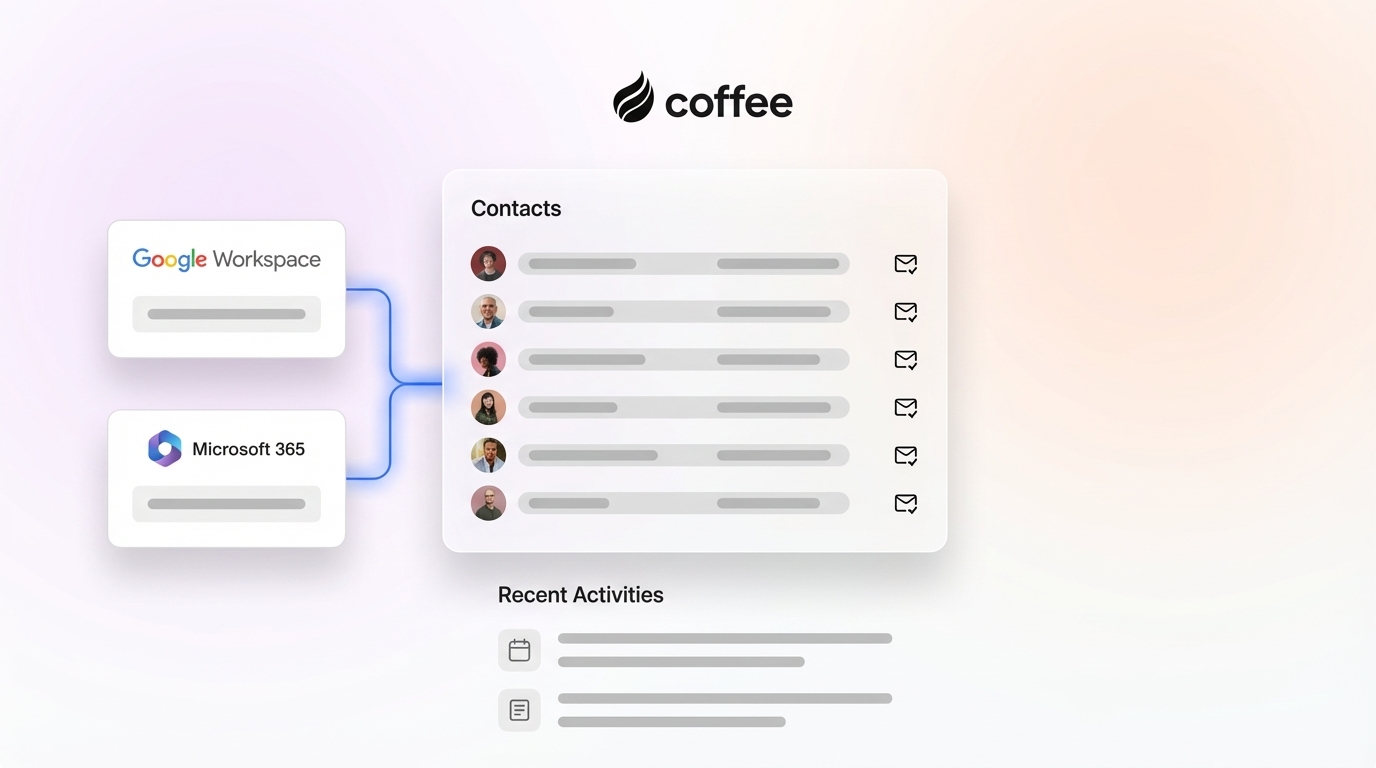
Coffee leads this category. Coffee is an autonomous CRM agent that connects to your Google Workspace or Microsoft 365 account and begins working immediately.

- It auto-creates contacts and companies from emails and calendars so every interaction links to the right record.
- It enriches data with job titles, funding information, and LinkedIn profiles via licensed data partners, which removes the need for separate enrichment tools.
- It logs activities automatically, keeping “last activity” and “next activity” fields current without anyone typing notes.
- It prepares meeting briefings that summarize attendee context, roles, and past interactions.
Coffee works as a standalone CRM for small teams or as a companion agent on top of existing Salesforce or HubSpot instances. It handles the “data in” process so your system of record stays accurate without human effort.

Comparison: Which Method Should You Choose?
| Factor | Native Integrations | Third-Party Automation | AI Agents (Coffee) |
|---|---|---|---|
| Setup Complexity | Low (15–30 min) | Medium (2–4 hours) | Minimal (connect email, then you are done) |
| Maintenance Burden | Low | High (ongoing rule fixes) | None (agent self-maintains) |
| Data Quality | Logs activity without deep context | Depends on parser rules | High, because the agent understands context |
| Handles Unstructured Data | No | Limited | Yes |
| Best For | Basic email logging | Custom structured workflows | Zero-effort, high-quality data |
Field Mapping Best Practices For Email-To-CRM Data
Field mapping shapes data quality for every method you choose. Standard mappings for email-to-CRM workflows include the following pairs.
| Email Source Field | CRM Destination Field | Notes |
|---|---|---|
| From Name | Contact First Name / Last Name | Split if needed |
| From Email | Contact Email | Use as deduplication key |
| Subject Line | Deal Name | For deal-related emails |
| Email Body | Note / Activity Description | Truncate if needed |
| Signature Company | Company Name | May require enrichment |
| Date Sent/Received | Activity Date | Use for timeline accuracy |
A four-column field mapping document with Source Field, Destination Field, Field Type, and Transformation Logic keeps fields aligned during CRM-email integration and prevents gradual “field drift.”
- Use picklists instead of free-text fields for categories like Industry or Lead Source to avoid spelling inconsistencies.
- Standardize job titles so variants like “VP Sales,” “Vice President of Sales,” and “VP, Sales” map to one value using a mapping table with 50–100 common entries.
- Test field mapping with 10–50 sample records before running a full integration.
Deduplication Strategies That Keep CRM Data Clean
Duplicates in CRM systems usually come from integrations writing at machine speed rather than from manual entry. Each connected tool uses its own matching logic, and when two tools disagree about whether a record exists, they create duplicates during every sync cycle.
Effective prevention rules follow a clear sequence, from choosing keys to enforcing checks and running periodic scans.
- Use email address as the primary deduplication key for contacts, and use normalized domain stripped of “www.” and lowercased for companies.
- Check before you create. Every writer, whether sync, import, script, or agent, should look up an existing record before creating a new one. Update the match if one exists and create a record only when the lookup returns empty.
- Configure CRM duplicate rules. In Salesforce, set matching rules on email (exact) and company name plus phone (fuzzy) with the action set to “Block” for automated imports. HubSpot applies native deduplication on email automatically.
- Run weekly deduplication scans. Exact matches on email are safe to auto-merge, while fuzzy matches should go through human review.
Merges in most CRMs are irreversible, and HubSpot has no unmerge function. When uncertainty exists, archive the record instead of merging it.
Setting Up Coffee To Auto-Populate Your CRM From Email
Coffee reaches full value in minutes and avoids the long setup cycles of traditional automation. You connect your accounts, and the agent handles the rest.
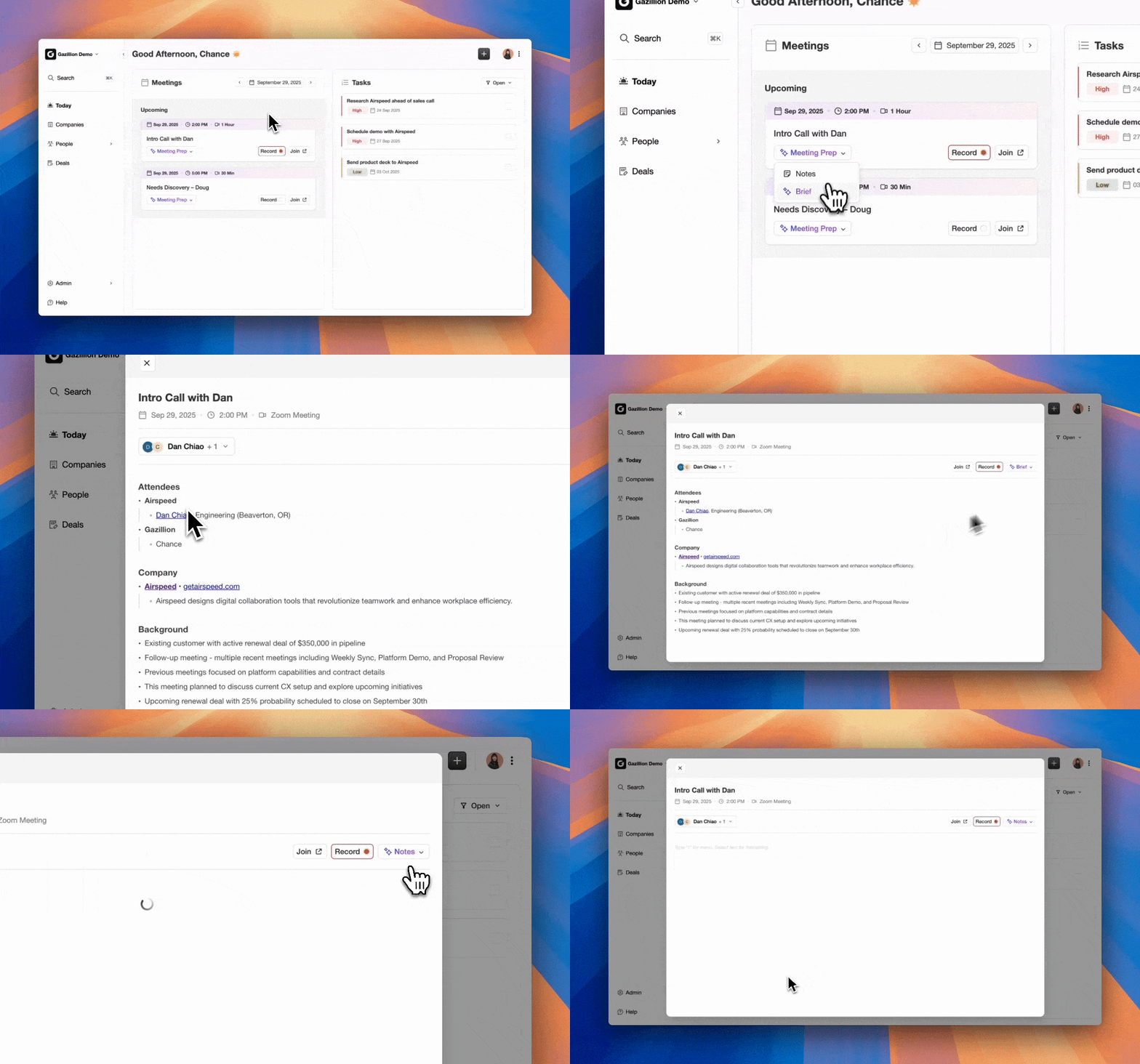
- Connect your Google Workspace or Microsoft 365 account. Coffee uses OAuth, the same secure connection standard as other enterprise tools.
- Let Coffee scan emails and calendars. The agent creates contacts and companies so every person you email or meet becomes a CRM record with activity history.
- Allow Coffee to enrich records. It adds job titles, funding data, and LinkedIn profiles from licensed data partners, which removes manual lookup work and separate enrichment tools.
- Rely on Coffee for activity logging. The agent logs all activities and updates deal stages based on email and calendar context, keeping “last activity” and “next activity” fields current.
- Skip manual rules. Unlike Zapier workflows that depend on parser configuration and field mapping, Coffee’s agent understands context and handles edge cases on its own.
Coffee works as a standalone CRM or as a companion to Salesforce and HubSpot. Teams already invested in a legacy CRM can deploy Coffee as an intelligent layer that takes over the data entry work reps usually avoid. Coffee is SOC 2 Type 2 and GDPR compliant, and it never uses customer data to train public models.
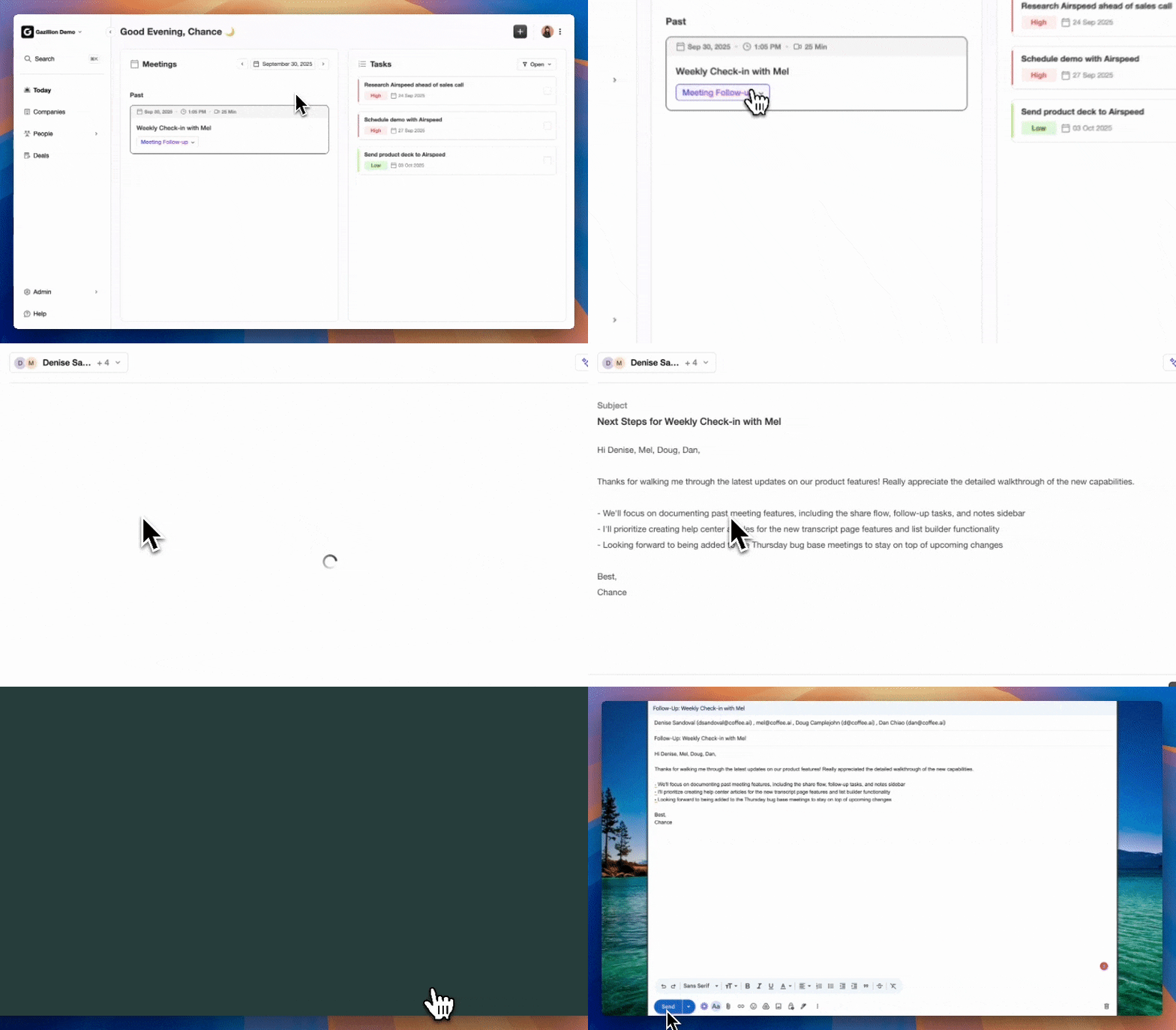
See how Coffee automates your CRM data entry in a few minutes of setup.
Frequently Asked Questions
How Do I Auto-Populate Email Data Into My CRM?
Auto-populating email data into your CRM starts with connecting your email provider, such as Gmail or Outlook, to your CRM system. Native integrations like HubSpot’s AI Email Enrichment or Salesforce’s Einstein Activity Capture log emails and extract basic contact data. For more advanced extraction, you can use third-party tools like Zapier with an email parser to define custom field mappings. You can also deploy an AI agent like Coffee that creates and enriches contacts from email and calendar data without manual rules. This agent-based approach handles unstructured email content and extracts deal context, timelines, and qualification signals instead of only logging that an email occurred.
How Can I Automatically Populate Contact Information From Emails Using HubSpot AI?
HubSpot’s AI Email Enrichment feature scans email signatures and message bodies to update contact properties. Enable it in Settings → Data Management → AI Email Enrichment, connect your Gmail or Outlook inbox via OAuth, and install the HubSpot Sales Chrome extension for Gmail or the Office 365 add-in for Outlook. The AI extracts details like name, title, and company from email signatures and updates contact records when emails are logged. The most common silent failure comes from the never-log list, which often excludes your own company domain by default, so check that list before troubleshooting the connection.
How Do I Connect My Email To My CRM?
Most CRMs provide native email integration. HubSpot connects via Google OAuth or Office 365, Salesforce uses the Outlook or Gmail Integration paired with Einstein Activity Capture, and Zoho and Pipedrive include built-in email sync configurable in Settings. For CRMs without native integrations, or when you need cross-platform flexibility, Zapier or Make can connect any email provider to any CRM using a trigger-action model with an email parser. For teams that want zero ongoing maintenance, Coffee connects to Google Workspace or Microsoft 365 and manages contact creation, enrichment, and activity logging automatically without rules to configure or maintain.
Can I Auto-Create CRM Contacts From Incoming Emails?
CRM contacts can be auto-created from incoming emails through several approaches. Native CRM integrations such as HubSpot AI Email Enrichment and Salesforce Einstein Activity Capture create contacts from emails. Third-party automation tools like Zapier with an email parser can also create contacts based on rules you define, although these workflows require ongoing maintenance as email formats change. AI agents like Coffee extend this further by creating contacts and companies from all email and calendar activity, enriching records with job titles and LinkedIn profiles, and logging activities without manual rules or setup. Coffee also applies automatic deduplication to prevent the duplicate explosion that often occurs when multiple capture surfaces write to the same CRM.
What Is The Best Way To Auto-Populate CRM From Email?
The best method depends on your stack and your tolerance for maintenance. Native integrations are fastest to set up but stay limited to basic activity logging and do not interpret deal context or qualification data from unstructured email content. Third-party automation via Zapier or Make offers flexibility but requires ongoing rule maintenance, breaks quietly when CRM admins change field configurations, and struggles with inconsistent email formats. For most teams, an AI agent like Coffee works best. It removes manual data entry, handles unstructured email data, enriches records automatically, and runs without ongoing maintenance. Coffee can operate as a standalone CRM for small teams or as a companion layer on top of Salesforce or HubSpot, which means it solves the data entry problem instead of shifting the work from typing to rule maintenance.
Conclusion: Eliminate CRM Data Entry For Good
Manual CRM data entry from email has a clear solution when you choose the right method. Native integrations reduce logging effort but still leave many field updates manual. Third-party automation replaces typing with rule maintenance and frequent debugging. A six-person sales team spending 6 minutes per record across 150 records per week accumulates 4,680 hours of manual entry annually, or 90 hours per week, and that cost compounds every quarter without automation.
Coffee’s agent-led approach ensures strong data going into the CRM, which produces accurate forecasts, reliable pipeline intelligence, and a system your reps actually use. There are no parsers to configure, no rules to maintain, and no manual review queues. You connect your email, and the agent handles the work.
Try Coffee today and watch your CRM build itself from your team’s email and calendar activity.