Written by: Doug Camplejohn, CEO & Co-Founder, Coffee | Last updated: July 24, 2026
Key Takeaways for ZoomInfo Exports in 2026
- Exporting contacts from ZoomInfo consumes one credit per record and can quickly drain team allocations under the 2026 credit model.
- Segmentation by geography, company size, or seniority keeps each export under the 1,000-record bulk limit.
- Accurate field mapping and clear deduplication rules prevent duplicate records and missing required CRM fields.
- Direct CRM sync removes manual CSV imports but still demands close credit monitoring and permission checks.
- Use Coffee to replace manual exports with an autonomous CRM Agent that enriches and syncs contacts automatically.
Why ZoomInfo Exports Matter for RevOps and Sales
Fresh contact data keeps outbound campaigns effective and CRM records trustworthy. When records go stale, job titles drift, emails bounce, and acquisitions break account structures, pipeline accuracy drops fast. ZoomInfo is the dominant source of verified B2B contact data, yet the export process is where many teams lose time and budget.
ZoomInfo’s 2026 credit model allocates monthly credits to individual users and bulk credits at the organizational level, so one aggressive export by a single rep can drain the shared pool for everyone. Active outbound teams on lower-tier plans with 2,000–5,000 annual credits often hit overages because export volume grows faster than credit budgets. Poor export hygiene then shows up as wasted spend, incomplete CRM records, duplicate leads, and broken sequences.
The workflow below walks through a complete export sequence, from filters to validation, and closes with an automation option that removes manual exports entirely.
Export Readiness Checklist Before You Start
Confirm these prerequisites before you run any export.
- An active ZoomInfo seat with export permissions enabled by your admin
- Role-based access that includes CSV or CRM export rights, controlled in ZoomInfo by user role
- Google Workspace or Microsoft 365 connected if you plan to use CRM sync
- A target CRM such as Salesforce or HubSpot with the ZoomInfo managed package installed, or a spreadsheet destination for CSV exports
- A sufficient team credit balance confirmed in the ZoomInfo admin dashboard
Quick View of the ZoomInfo Export Workflow
The export flow follows a consistent pattern. Open Advanced Search, apply filters for title, industry, and company size, then select the fields you need. Click Export, choose CSV or a CRM destination, confirm field mapping, and submit. Segment queries so each export stays under 1,000 records to avoid bulk limits.
Step 1: Use Advanced Search Filters to Control List Size
Start in ZoomInfo by opening the Advanced Search panel. Apply filters in this order: job title or function, seniority level, industry vertical, company size by employee count or revenue, and geography. Narrow the result count before selecting any records. Credits are consumed on enrichment and export of contact records, not on search, lookup, or viewing basic results, so you can iterate on filters freely.
Common filter mistakes and how they inflate results:
These mistakes share one pattern: they all cast the net too wide and bloat your list size. Overlapping seniority tiers such as selecting both Director and VP inflate result counts and push exports over the 1,000-record threshold. Broad industry codes return holding companies alongside operating companies, so use SIC or NAICS sub-codes where possible to narrow the list. Geography set to United States without state-level refinement creates the largest list bloat and makes targeted campaigns hard to manage.
Step 2: Choose Fields and Avoid Required-Field Failures
After you finish filtering, open the field selector before exporting. ZoomInfo recommends exporting only the fields needed for the downstream workflow to reduce noise and simplify personalization. A standard outbound export usually includes first name, last name, company name, job title, department, seniority, email address, LinkedIn URL, company website, industry, employee count, and revenue.
Required-field blocks to prevent failed writes:
- Salesforce Contact records require an Account association, so exports without a matched or new Account will fail at the CRM write step.
- HubSpot uses a valid email address as the primary identifier, so contacts without verified emails create orphaned records.
- Omitting Company Name breaks CRM deduplication logic that matches on company domain.
Step 3: Decide Between CSV Export and Direct CRM Sync
Most teams use CSV exports when sending contacts to cold-email tools and rely on direct integrations for CRMs and SEPs such as Salesforce, HubSpot, Outreach, and Salesloft. CSV setup is quick and flexible but requires a manual import step and a separate email validation pass. Direct CRM sync takes longer to configure yet removes the import step and supports deduplication rules inside the CRM.
Field mapping mismatches to check first:
- ZoomInfo’s Direct Phone field does not automatically map to Salesforce’s Phone field, so verify the mapping in the managed package settings.
- HubSpot’s Job Title property is a free-text field, and ZoomInfo’s structured seniority data will not populate it without a custom mapping.
- Teams should decide the source of truth per field, using fill-when-blank for fields reps maintain manually and overwrite for fields that go stale quickly such as job titles and firmographics. Configure deduplication with matching keys such as email and company domain to prevent duplicate records.
Eliminate field mapping errors with Coffee’s CRM Agent. It writes enriched contact data directly to Salesforce or HubSpot with no manual configuration.
Step 4: Work Within the 1,000-Record Bulk Limit
ZoomInfo limits the number of leads exported to Salesforce in a single operation. For lists larger than the allowed size, segment the master query into sub-queries that each return fewer records.
Effective segmentation tactics include the following approaches.
- Split by geography and run separate exports for each U.S. region such as Northeast, Southeast, Midwest, and West.
- Split by company size tier such as 1–50 employees, 51–200, 201–1,000, and 1,001 or more.
- Split by seniority and export C-suite, VP, Director, and Manager as separate batches.
- Use saved searches to preserve each segment’s filter configuration for repeatable future exports.
When you log in directly to ZoomInfo, larger batch sizes to Salesforce may be available compared with the Salesforce native app integration. For bulk operations, use the ZoomInfo web platform instead of the native Salesforce app.
Each exported contact costs exactly one credit. Annual credit allocations by plan are:
- Basic: 2,000 credits at roughly $3,000 per year
- Professional: 5,000 credits at roughly $14,995 per year
- Advanced: roughly 10,000 base credits per year plus 1,000 credits per user per month on an annual contract
- Elite: higher-tier credit packages
Teams should review credit consumption regularly so they can adjust export habits before hitting ceilings.
Step 5: Track Credit Use and Tighten Your Queries
Open the credit dashboard in ZoomInfo Admin before every large export session. Sort saved searches by estimated record count and run the highest-value segments first. Deselect contacts already present in the CRM before exporting. Deduplication rules match on keys such as email and company domain, yet credits are still consumed for every contact in the export batch.
Handling credit exhaustion during an export:
- If credits run out during a bulk export, the job stops at the credit ceiling and creates partial list segments that are easy to overlook.
- Admins have unlimited credits for bulk list exports, or they can request a temporary credit lift for individual users by opening an issue in the marketing operations project.
- Schedule large exports at the start of the credit reset cycle on the first of each month to maximize available balance.
Even with careful planning, exports can still fail because of permissions, integrations, or sync issues. The next step focuses on those failure modes and how to fix them quickly.
Step 6: Fix Permission Errors, Extension Issues, and Sync Failures
| Issue | Likely Cause | Fix | Source |
|---|---|---|---|
| Export button grayed out | User role lacks export permission | Ask an admin to enable export rights in ZoomInfo role-based access control settings. | ZoomInfo Copilot role-based access |
| Salesforce required-field error | Contact not associated with an Account or a mandatory CRM field is blank | Confirm the Account exists or will be created and map all required Salesforce fields before export. | GitLab ZoomInfo handbook |
| Chrome extension stalling on LinkedIn | Outdated extension, blocked third-party cookies, or stale cache | Remove and reinstall the ReachOut extension, update Chrome, allow third-party cookies, clear cache, then log into ZoomInfo before opening the extension. | GitLab ZoomInfo handbook |
| Export not working or job fails silently | Credit exhaustion or Salesforce native app 25-record cap reached | Check credit balance and switch from the Salesforce native app to direct ZoomInfo web login for bulk exports up to 2,000 records. | GitLab ZoomInfo handbook |
Automation Alternative: Coffee’s Agent Instead of Manual Exports
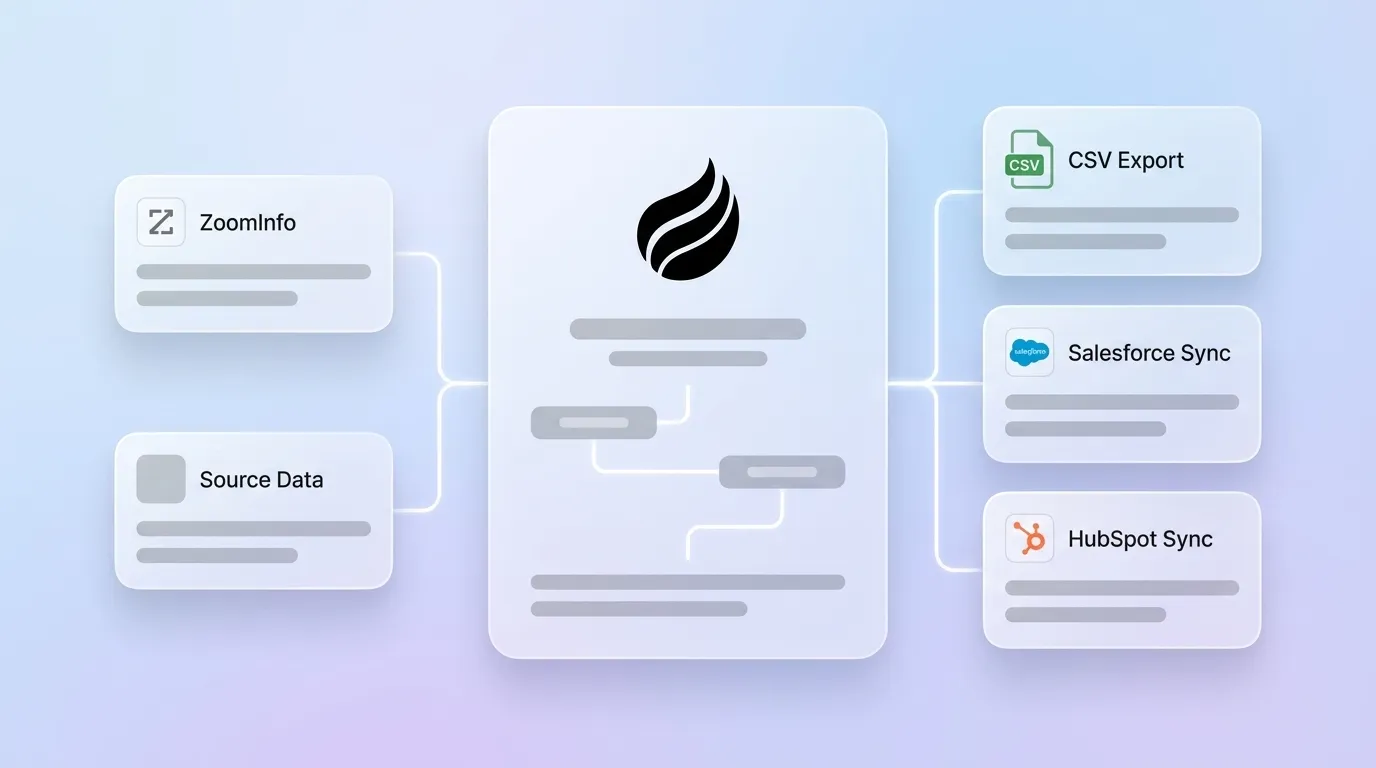
Every manual step above, from segmentation to troubleshooting, adds recurring work to each export cycle. Coffee’s autonomous CRM Agent removes this entire workflow by capturing and syncing enriched contact data directly into Salesforce or HubSpot without any manual export.
When connected to Google Workspace or Microsoft 365, the Coffee Agent scans emails and calendars to auto-create contacts and companies. It enriches records with job titles, funding data, and LinkedIn profiles through licensed data partners and logs all activity on its own. There are no credits to manage, no bulk limits to segment around, and no field mapping errors to debug. The Agent writes clean, deduplicated records to the CRM continuously instead of in human-triggered batches.

For teams already committed to Salesforce or HubSpot, Coffee deploys as a Companion App. A simple authentication connects the Agent to the existing instance, and it starts enriching and syncing data immediately. For teams ready to replace their CRM, Coffee’s Standalone AI-First CRM delivers the same Agent-powered data quality without legacy system overhead.

The core difference from manual ZoomInfo exports is structural. ZoomInfo exports create point-in-time snapshots that start aging the moment they land in your CRM. Coffee’s Agent maintains a living, continuously updated record of every contact and interaction, sourced from the ground-truth data that already flows through your team’s email and calendar systems.
Replace manual ZoomInfo exports with Coffee’s autonomous Agent and keep your CRM current without credit spend or manual steps.
Validation Checklist After Every Export
Run this validation pass after any export, whether manual or automated, before you launch outbound sequences.
- Confirm the record count in the CRM matches the export confirmation number from ZoomInfo.
- Check that all required fields such as email, company, and title are populated with no blanks in mandatory columns.
- Verify that no duplicate records were created by running a deduplication report filtered by email address and company domain.
- Run a secondary email validation pass with tools such as NeverBounce, ZeroBounce, or Bouncer and drop any emails not scored as valid or deliverable to keep final bounce rates under 2%.
- Confirm field mapping so phone numbers sit in the correct CRM field and seniority data lands in the correct property.
Frequently Asked Questions
How long does ZoomInfo export setup take for a new Salesforce integration?
Installing the ZoomInfo managed package from the Salesforce AppExchange and authenticating the connection usually takes 30 to 60 minutes for a Salesforce admin with the right permissions. Configuring field mapping, deduplication rules, and source-of-truth logic for each field adds another one to three hours, depending on the complexity of the existing Salesforce data model. Running a controlled test that enriches a small set of known records before scaling adds about an hour. Most experienced RevOps managers reach a validated, production-ready integration in roughly half a day.
Who owns the contact data exported from ZoomInfo?
ZoomInfo licenses contact data to customers under the terms of their subscription agreement. Exported contacts stored in a CRM or CSV remain subject to those license terms, which typically restrict redistribution and require that data be used for legitimate business outreach. When a ZoomInfo subscription lapses, the license to use that data usually expires as well, so teams should not treat exported snapshots as a permanent data asset. Review your ZoomInfo contract and consult legal counsel for the terms that apply to your organization.
How does the export process scale for larger sales teams?
Scaling ZoomInfo exports across a larger team depends on strong credit governance. Because credits are pooled at the team level in 2026, one unplanned bulk export by a single rep can deplete the shared balance. Helpful practices include assigning a RevOps owner to approve export requests above a defined threshold, using saved searches with pre-approved filter configurations to avoid redundant exports of the same contacts, and scheduling large exports at the start of the monthly credit reset cycle. Teams that regularly hit credit ceilings should compare the cost of a higher-tier plan or an automated enrichment platform against the cost of buying extra credits.
What happens to export workflows when ZoomInfo’s hybrid pricing model launches in Q3 2026?
ZoomInfo’s planned Q3 2026 shift to a hybrid model pairs a low annual platform fee with pre-purchased data-credit packages. This change affects how credits are budgeted and consumed across ZoomInfo applications and external tools, including AI assistants. Teams with existing seat-based contracts should audit current monthly export volume before the transition to see whether their credit allocation will rise or fall under the new structure. Export mechanics such as Advanced Search, CSV, and CRM sync are expected to remain the same, although the effective cost per export may change based on the chosen credit package.
Can Coffee replace ZoomInfo entirely for contact enrichment?
Coffee’s Agent delivers data enrichment roughly on par with ZoomInfo for most outbound use cases, using licensed data partners and bundling enrichment directly into the platform with no per-contact fee. For teams that mainly use ZoomInfo to enrich CRM records and build prospect lists, Coffee’s built-in enrichment, List Builder, and Visitor Identification features cover the core workflow without a separate ZoomInfo subscription. Teams with highly specialized data needs, such as intent signal monitoring or deep technographic filtering at enterprise scale, may still benefit from a ZoomInfo subscription alongside Coffee while using Coffee’s Agent to automate the sync instead of managing manual exports.
Recap of the ZoomInfo Export Workflow
A reliable ZoomInfo export workflow in 2026 follows this sequence.
- Confirm export permissions and available team credit balance before starting.
- Build and refine filters in Advanced Search until the result count is under 1,000 records.
- Select only the fields required for the downstream workflow.
- Choose CSV for cold-email tools or direct CRM sync for Salesforce and HubSpot.
- Segment any list over 1,000 records by geography, company size, or seniority before exporting.
- Validate record counts, field mapping, and deduplication after every export.
- Run secondary email validation before importing into any sending tool.
Each checkpoint introduces risk and ongoing operational overhead. Coffee’s CRM Agent removes every checkpoint by making the export process unnecessary. Contacts are captured, enriched, and synced automatically from the data streams that already run through your team.
Let Coffee’s Agent handle contact data so your team can stay focused on selling.