Written by: Doug Camplejohn, CEO & Co-Founder, Coffee | Last updated: August 31, 2026
Key Takeaways
- Stalled deal alerts flag opportunities that sit inactive or stuck in a stage so sales teams can step in before they slip.
- Native Salesforce tools such as Pipeline Inspection, custom reports, Scheduled-Triggered Flows, and Big Deal Alerts each require setup, maintenance, and troubleshooting.
- Common stall triggers include no logged activity for 7+ days, stage duration above historical medians, passed close dates, and buyer signals in call transcripts.
- AI-powered tools like Coffee remove most manual work by tracking pipeline changes, logging activity, and surfacing stalled deals through natural-language queries.
- Teams ready to replace multiple native alerts with a single AI agent can review Coffee’s pricing and plans today.
Why Stalled Deals Quietly Damage Your Pipeline
Checkpoint GTM’s RevOps reviews found roughly 50% of open pipeline sitting past its expected close date at most companies. Deals pushed once close at the revised date roughly 40% of the time. Deals pushed twice close at the second revised date less than 15% of the time. By the third push, the deal is functionally dead but often still in the pipeline.
Deal changes sit in Salesforce for an average of 4.2 days before someone catches them in a review. Manual pipeline reviews move too slowly to catch stalled deals before they slip. Salesforce offers native tools to automate alerts, yet each one has limits, and AI-powered solutions like Coffee can automate the entire process while adding deeper pipeline intelligence.
What Stalled Deal Alerts Are and Why They Matter
A stalled deal alert is an automated notification that fires when an opportunity crosses a defined inactivity or stage-duration threshold. Without alerts, stalled deals inflate coverage ratios, distort forecasts, and waste rep time on opportunities that have already gone cold. Less than 10–15% of deals should be inactive for 30 days. Anything above that benchmark signals a pipeline health problem.
Common causes of stalled deals include:
- No logged activity (no Task, Event, or Email) for 7+ days
- Stage duration exceeded, such as a deal sitting in “Proposal” for 21 days when the median is 10
- Close date passed without update
- Single-threaded deals where the only contact goes silent
- Buyer signals indicating stall, such as “budget is on hold” detected in call transcripts
Native Salesforce Options for Stalled Deal Alerts
Using Pipeline Inspection for Visual Stalled Deal Signals
Pipeline Inspection is available in Performance and Unlimited editions, and is also included with Revenue Intelligence, which is available for an extra cost in Enterprise Edition. It provides a visual dashboard that surfaces deals stuck in stages. For admins who want a no-code starting point, this is the fastest native option.
- Navigate to Setup → Pipeline Inspection
- Enable Pipeline Inspection for your org
- Configure stage duration thresholds
- Review the Pipeline Inspection dashboard for stalled deals
Pipeline Inspection provides visual alerts within Salesforce but does not send email notifications on its own. For email delivery, pair it with scheduled reports or Flows.
Using Custom Reports for Simple Email Alerts
A scheduled Opportunities report filtered on LastActivityDate offers a simple way to surface stalled deals and email them to stakeholders daily. The LastActivityDate field is populated by logged activities such as tasks, events, and manually logged calls. If the team is not using a connected inbox or Einstein Activity Capture, this field may only reflect manually logged activities.
- Create a new Opportunities report
- Add filter:
LastActivityDate < TODAY - 7 - Add filter:
IsClosed = FALSE - Schedule the report to email daily to relevant stakeholders
Using Scheduled-Triggered Flow for Flexible Rules
Salesforce’s legacy automation tools, Workflow Rules and Process Builder, have been in maintenance mode since 2024 and no longer receive feature updates. Scheduled-Triggered Flow is the current best practice for stalled deal alerts. Flows are more flexible than reports but require Flow-building knowledge.
- Create a Scheduled-Triggered Flow on the Opportunity object
- Set the schedule to run daily during off-peak hours
- Add criteria:
LastActivityDate < TODAY - 7 AND IsClosed = FALSE - Add action: Send Email Alert to Opportunity Owner
- Activate the Flow
Using Big Deal Alerts for Amount-Based Signals
Big Deal Alerts are a native Salesforce feature that notifies managers when an opportunity exceeds a defined dollar amount. This is amount-based and serves a different use case from stalled deal alerts. To configure, navigate to Setup → Big Deal Alerts, set the amount threshold, select the stages that qualify, and assign recipients. Common issues include the amount threshold not being met, the stage not appearing in the picklist, or permission gaps preventing delivery.
While Big Deal Alerts focus on deal size, stalled deal alerts require activity-based monitoring. If you want to automate that without building Flows, Coffee can handle it, so you can see how Coffee automates stalled deal detection.
Third-Party and AI-Powered Solutions for Stalled Deals
Native Salesforce Flow Builder is free and built into every edition, but each alert type requires a separate Flow, only email delivery is supported, and there is no severity logic or daily digest. Third-party and AI-powered tools close these gaps.
| Tool | Setup Complexity | Key Strength | Best For |
|---|---|---|---|
| Coffee | OAuth, under 1 hour | AI agent handles data entry and stalled deal alerts automatically | Teams wanting automation without Flow building |
| n8n | Requires Connected App, ~10 min setup | Flexible cross-system automation | Teams with technical resources needing cross-system workflows |
| Notis | Simple integration | Slack and Telegram notifications | Teams wanting basic channel alerts |
| Clari | 3–6 month implementation | Enterprise revenue intelligence | Teams with 200+ reps and $70K–$150K+ annual budget |
Why Coffee Stands Out for Stalled Deal Detection
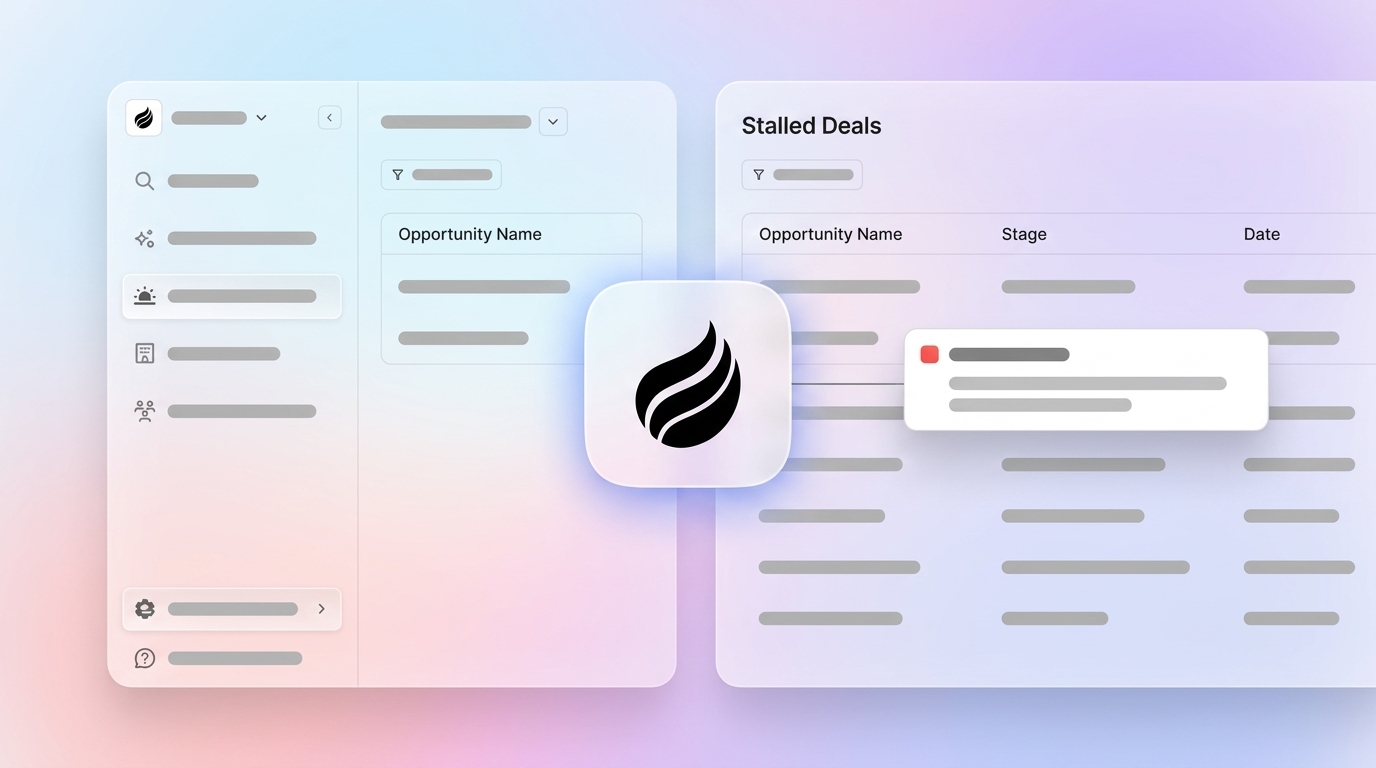
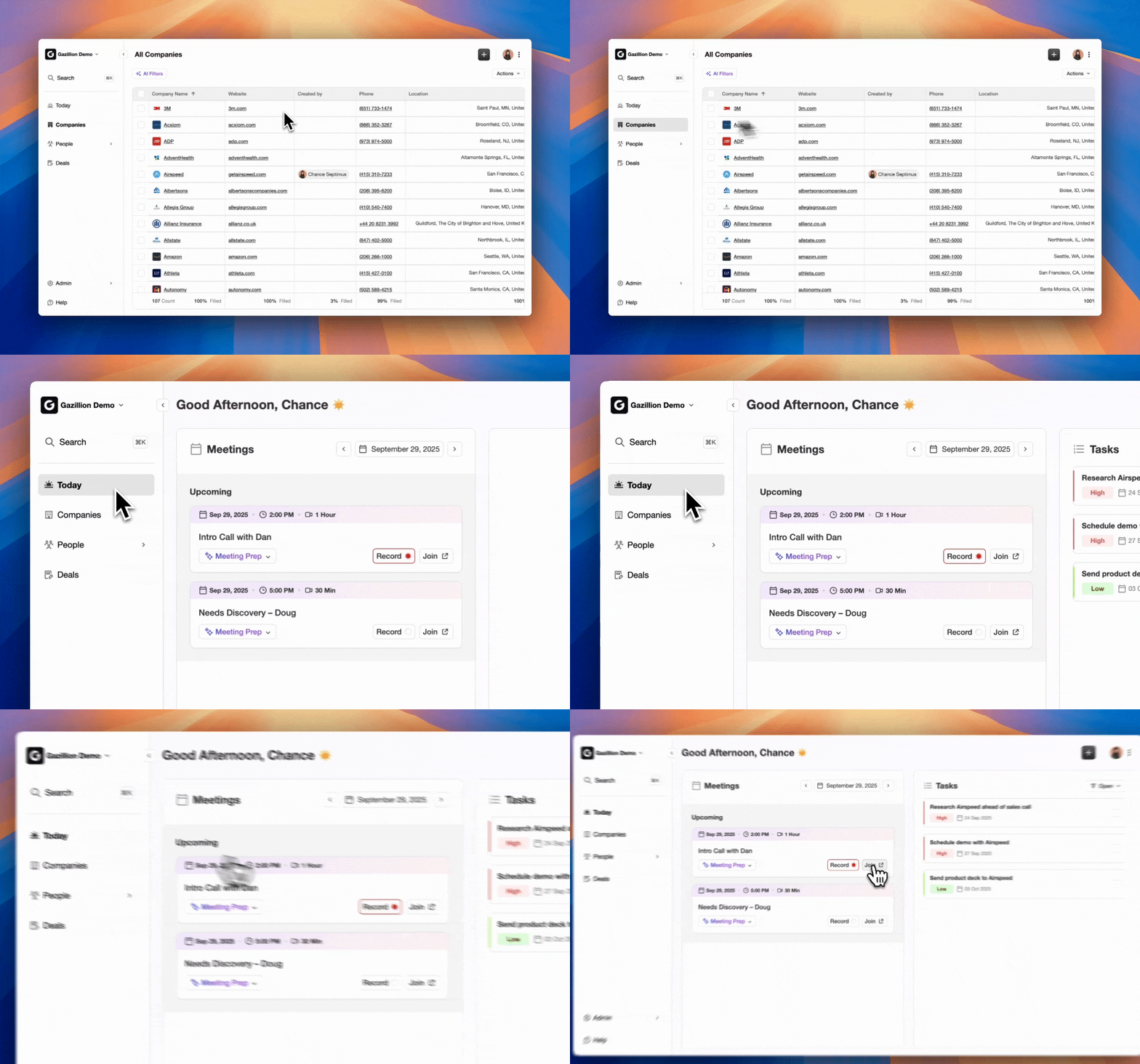
As the comparison table shows, Coffee offers fast setup and broad automation for stalled deal alerts. Coffee deploys as a Companion App on top of existing Salesforce instances, connecting via OAuth in under an hour. The AI agent then tracks pipeline changes, logs activity, and sends stalled deal alerts without any manual automation setup. The Pipeline Compare feature visualizes week-over-week changes, highlighting stalled opportunities alongside progressed deals and new additions. This turns pipeline reviews from interrogation sessions into strategic discussions.
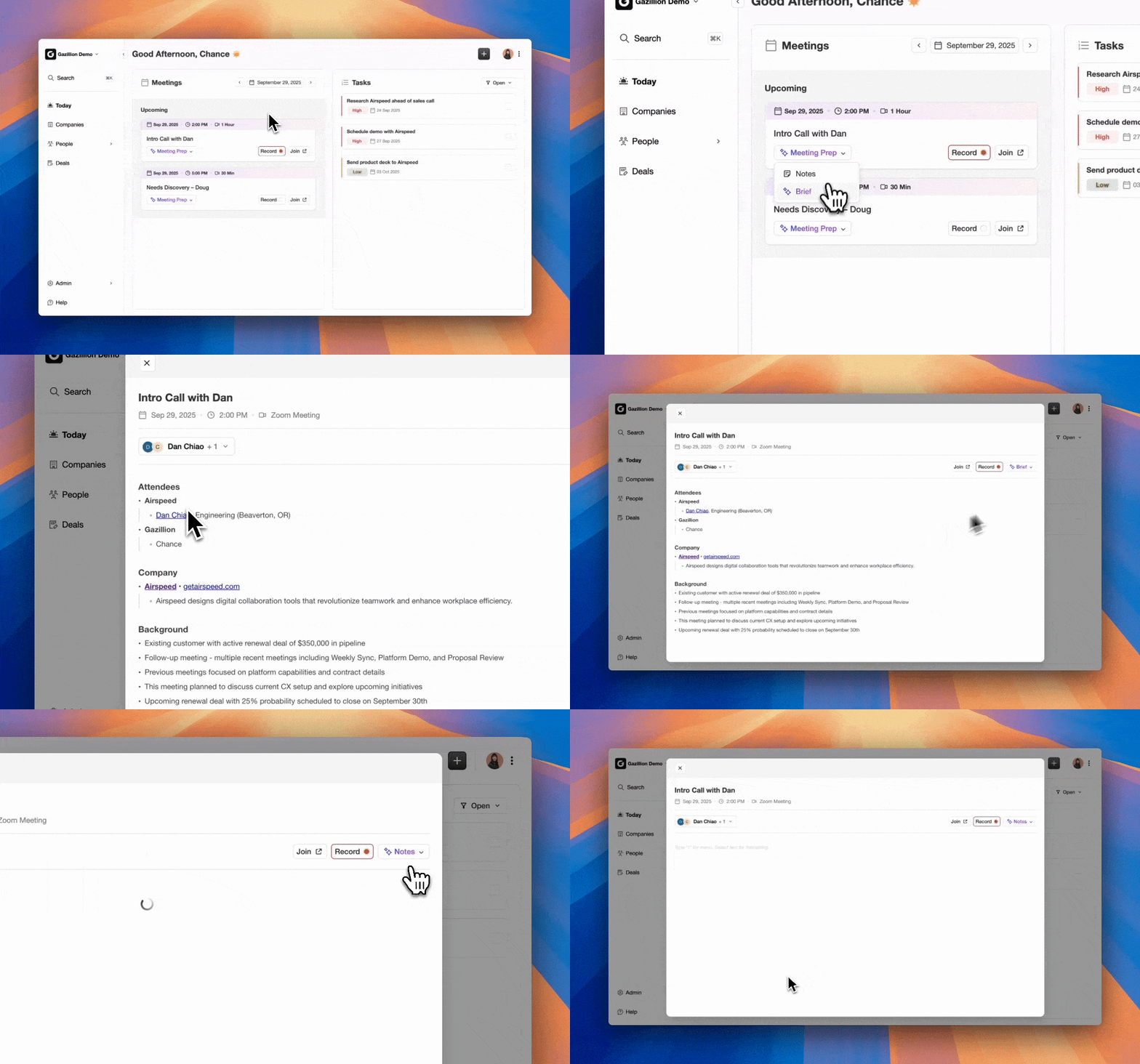
Coffee’s AI meeting bot joins calls on Zoom, Teams, and Meet to capture conversation signals, detecting buyer language like “budget is on hold” or “we’re re-evaluating” the same day they are spoken. This captured intelligence feeds directly into Coffee’s AI search on deals, released in January 2026, which answers natural-language questions such as “Which deals are stuck in negotiation?” or “What’s closing this month?”. The search experience surfaces stalled deal intelligence without any report configuration.
How to Choose Between Native and AI-Powered Alerts
The right approach depends on four factors.
- Salesforce edition: Pipeline Inspection is included for all customers on Enterprise Edition and above (Performance, Enterprise, and Unlimited editions). For Professional and below, it is not natively available and would require an add-on such as Revenue Intelligence, rather than Flows or third-party tools.
- Team size: Manual monitoring breaks at around 100 active opportunities across three or more reps. Larger teams benefit from AI automation.
- Technical skill: Flow expertise is required for native inactivity-based alerts. Coffee works without specialized technical expertise.
- Need for advanced insights: Activity-only alert rules miss the “deal looks active but the buyer just told us they’re stalling” pattern. AI tools that combine CRM activity with call content detect risk earlier.
Considering these factors, an AI-powered solution like Coffee is the best choice for most B2B teams. It removes the maintenance burden of multiple Flows, catches signals that native tools cannot see, and provides pipeline intelligence that improves forecast accuracy. Teams do not need a Salesforce admin to build or debug automation.
Explore Coffee’s plans and replace your stalled deal alert stack with one AI agent.
Troubleshooting Stalled Deal Alerts
Fixing Permissions Issues
Users may lack access to Pipeline Inspection or Flow-generated alerts. Check profiles and permission sets to confirm the relevant features are enabled. Pipeline Inspection requires the Pipeline Inspection user permission, which can be granted via the Pipeline Inspection Included permission set, or alternatively through the Customize Application or Modify All Data permissions.
Resolving Email Deliverability Problems
In a fresh Salesforce sandbox, email deliverability defaults to System Email Only, which blocks most outbound alerts. Admins must change it to All Email before testing notifications. Check Email Log Files to confirm delivery and whitelist addresses if alerts land in spam.
Diagnosing Flow Errors
Salesforce Flows can fail to trigger if the schedule is not configured, the SOQL criteria are too restrictive, or the action step is omitted. Use a daily schedule, query the correct open opportunities, and confirm the email alert action is present before activating. Workflows can also break silently. Set up an error workflow that fires a notification when the main workflow throws an exception, acting as a dead man’s switch for the automation.
Debugging Big Deal Alerts
Common reasons include the opportunity amount not meeting the configured threshold, the stage not appearing in the selected picklist values, or the recipient lacking the necessary permissions. Verify all three before assuming a platform bug.
Controlling Trigger Scope Creep
Firing on any field change catches formula recalculations and system fields that update on every save, producing duplicate alerts for a deal that has not actually changed in any way a human cares about. Compare only the specific fields that matter, such as LastActivityDate and StageName, rather than relying on a generic modified flag.
Checking Notification Settings
Salesforce enforces a limit of 1,000 workflow-generated emails per day per standard user license. When the limit is reached, additional alerts are queued and may not send until the next day. Confirm recipient users are active, email templates contain no broken merge fields, and daily send limits have not been exceeded.
Use this checklist before escalating any alert failure:
- Verify automation is active
- Check email deliverability is set to All Email
- Confirm recipient is active and valid
- Test email template for broken merge fields
- Review daily email limits
- Check spam filters
Best Practices for Alert Thresholds and Cadence
A flat 14-day rule for every stage fires too early on stages that genuinely take a month and too late on stages that should move in days. Set thresholds based on your own pipeline history. Pull the median days won deals spent in each stage and alert when a deal exceeds that median meaningfully.
Recommended starting thresholds by sales cycle type:
- Alert after 7 days of no activity for fast-moving deals (sub-30-day cycles)
- Alert after 14 days in stage for mid-market B2B cycles
- Set stale thresholds at 1.5x to 2.0x the median days-in-stage for each stage-segment combination
- For enterprise deals with no recent activity, the alert threshold is typically 45 to 60 days without buyer activity, per Pulse’s knowledge library
- Escalate to manager after 21 days of continued inactivity
Alert once at the threshold, escalate once if nothing changes, then fold still-stalled deals into a weekly digest rather than repeating individual alerts daily. Daily repeats cause reps to mute the channel within a week. Route alerts to both the opportunity owner and their manager, and include a direct record link so the recipient can act within seconds of reading the alert.
Frequently Asked Questions
How do I set up stalled deal alerts in Salesforce Flow?
Create a Scheduled-Triggered Flow on the Opportunity object. Set the schedule to run daily during off-peak hours. Add entry criteria of LastActivityDate less than TODAY minus 7 and IsClosed equal to FALSE. Add an email alert action targeting the Opportunity Owner. Activate the Flow. For stage-specific thresholds, add a Decision element before the action step to apply different inactivity windows per stage. For example, use 7 days for Proposal and 14 days for Discovery within a single Flow instead of maintaining separate automations.
Why are my Salesforce notifications not working?
The most common causes are email deliverability set to System Email Only in sandbox orgs, inactive automation, invalid or inactive recipients, and broken merge fields in the email template. Pull an Email Log File for the alert in question and confirm it delivered cleanly. Also check that daily email limits have not been exceeded, because Salesforce caps workflow-generated emails at 1,000 per day per standard user license. If alerts reach the inbox but go unread, check spam filters and consider routing to Slack instead.
What is the best third-party tool for stalled deal alerts?
Coffee is the recommended solution for teams that want an AI agent to handle alerting and pipeline intelligence automatically, without complex Flow building or manual maintenance. Coffee connects to Salesforce via OAuth in under an hour, tracks pipeline changes, captures conversation signals from calls, and answers natural-language questions like “Which deals are stuck in negotiation?”. Teams do not need a Salesforce admin to build or debug automation. For teams that need cross-system automation and have technical resources, n8n is a flexible alternative. For enterprise teams with 200+ reps and a large budget, Clari provides deep revenue intelligence.
How many days of inactivity means a deal is stalled?
For most B2B sales cycles, 7–14 days without logged activity is a reasonable starting threshold. The more accurate approach is to calculate 1.5x to 2.0x the median days-in-stage for each stage in your pipeline, using only closed-won deals as the baseline. For a stage that historically moves in 5 days, a deal should be flagged after 7–10 days of inactivity, though the precise threshold should be calibrated to your own historical data and sales cycle, while for a stage whose median duration is 30 days, a 45-day threshold (1.5x the median) is recommended as the point at which a deal triggers manager review. Review thresholds quarterly as your sales cycle evolves.
Can Salesforce Pipeline Inspection send email alerts?
Pipeline App automatically sends outbound email notifications (for example, Action Required and Reminders) based on notification settings, in addition to providing visual alerts in the UI. To receive email alerts based on Pipeline Inspection data, pair it with a scheduled Opportunities report filtered on stage duration or LastActivityDate, or build a Scheduled-Triggered Flow that queries the same criteria and sends an email alert to the opportunity owner and their manager.
Conclusion: Catch Stalled Deals Before They Disappear
Native Salesforce options such as Pipeline Inspection, custom reports, Scheduled-Triggered Flows, and Big Deal Alerts provide a functional foundation for stalled deal alerts. Each option still requires setup, maintenance, and ongoing troubleshooting. A full native implementation means multiple Flows to build, email deliverability settings to verify, and thresholds to recalibrate as the sales cycle changes.
AI-powered solutions like Coffee automate this work. The Coffee agent logs activity automatically, captures conversation signals from every call, tracks pipeline changes week over week, and surfaces stalled deals through natural-language queries, all without complex configuration. For teams that want to stop chasing stalled deals and start closing them, Coffee is the recommended choice.
Start with Coffee today and let an AI agent handle your stalled deal alerts automatically.