Written by: Doug Camplejohn, CEO & Co-Founder, Coffee | Last updated: August 7, 2026
Key Takeaways
- Salesforce migration automation uses scripts and agents to move CRM data with minimal manual effort and can finish within 60 days.
- Successful migrations follow a parent-to-child loading order, validate thoroughly in a full-copy sandbox, and deactivate automation rules before bulk loads.
- Tool choice depends on source system and volume, with SFDMU for org-to-org, Data Loader for high-volume CSV, and MuleSoft for enterprise integration.
- Post-migration data quality erodes without an agent layer, because reps revert to manual entry and records become stale within weeks.
- Keep your migrated Salesforce org accurate with Coffee’s autonomous agent.
1. Pick Your First Migration Tool by Source and Volume
The right first tool depends on where your data lives and how many records you plan to move. One-time CSV migrations of well-structured records can often finish in days to weeks, while complex multimillion-record historical migrations generally take longer, driven by data complexity and hygiene rather than record count alone. The table below maps your source system and record volume to the most appropriate first tool for each scenario.
| Source System | Record Volume | Migration Scenario | Recommended First Tool |
|---|---|---|---|
| Legacy CRM (HubSpot, Dynamics) | Up to 50,000 records | One-time standard-object import | Data Import Wizard |
| Legacy CRM or SQL database | 50,000–5,000,000 records | Bulk load with scheduling | Salesforce Data Loader |
| Salesforce org-to-org | Any volume with delta support | Org-to-org with relationship preservation | SFDMU |
| Multi-system or ongoing coexistence | Enterprise-scale, variable | Governed API-led integration | MuleSoft Anypoint |
2. Follow a Parent-to-Child Salesforce Loading Order
Loading data out of order leaves child records without parents, which creates orphaned records, especially when legacy systems lack matching schemas for objects like Accounts, Contacts, and Opportunities. Follow this parent-to-child sequence.
- Users load or confirm existing user records first, because all ownership lookups depend on them.
- Accounts act as the root parent for most B2B data. Create an External ID field, such as Legacy_ID__c marked as unique, on each target object and populate it with the source system’s unique identifier.
- Contacts link to Accounts via the AccountId lookup, so upsert them using the Account’s External ID.
- Opportunities link to Accounts and should load after Contacts so you can assign Contact Roles immediately.
- Opportunity Contact Roles act as a junction object and require both Opportunity and Contact IDs to exist.
- Cases and custom objects load after all standard parent objects are confirmed.
- Activities (Tasks and Events) load last, because they reference Users, Contacts, Accounts, and Opportunities at the same time.
Stable External IDs as join keys allow upserts and preserve relationships instead of relying on newly generated Salesforce record IDs, while also preventing duplicates during import. Once you define your loading sequence and External ID strategy, validate that sequence in a controlled environment before touching production data.
3. Validate Migration in a Full-Copy Sandbox Before Cutover
Loading a test batch of 100 records into a sandbox before production migration, followed by business-user review of 10–20 records for semantic accuracy, catches rule conflicts, lookup mismatches, and data-format errors before they affect live data. Run these tests in a full-copy sandbox.
- Row-count reconciliation confirm record counts in Salesforce match source-system exports for every object loaded.
- Relationship integrity check query for Contacts with null AccountId and Opportunities with null AccountId. Lookup relationship mismatches commonly produce orphaned records such as thousands of Contacts with no Account association.
- Field-mapping and unit validation confirm that data types, units, picklist values, and formats match. Missing transformations, such as dividing by 100, create systemic errors like pipeline reports showing $4.2M instead of $42K.
- Duplicate-rule scan enable Salesforce Duplicate and Matching Rules before the final load and run a report to surface any matches created during the test load.
- Validation-rule smoke test attempt a single-record insert via the UI to confirm all reactivated validation rules fire correctly without blocking clean data.
- Automation side-effect check verify that no welcome emails, assignment rules, or workflow alerts fired on imported records by reviewing the email log and task queue.
4. Compare SFDMU and Data Loader for 2026 Migrations
Choosing between legacy Bulk API and modern Bulk API 2.0 for Salesforce data loads depends on whether you prioritize fine-grained control over batch sizes and error handling or maximum throughput with streamlined job management. The table below compares SFDMU and Data Loader on batch capacity, delta support, and ideal use case so you can match each tool to the right job.
| Tool | Max Records/Batch | Delta Support | Best For |
|---|---|---|---|
| SFDMU (Salesforce Data Move Utility) | Configurable via export.json with Bulk API 2.0 | Yes, query-based delta via WHERE clause | Org-to-org migrations preserving relationships and External IDs |
| Salesforce Data Loader | Up to 5,000,000 records per job | No native delta, requires manual file preparation | High-volume bulk loads from CSV with manual upstream transformation |
5. Turn Off Flows and Validation Rules Without Breaking Anything
Deactivate automation in this order before any bulk load, starting with the most disruptive elements and working down to the least.
- Navigate to Setup → Flows and deactivate all Record-Triggered Flows on the objects being loaded, because these fire on every record insert and can cause severe performance degradation.
- Next, navigate to Setup → Object Manager → [Object] → Validation Rules and deactivate each rule while maintaining a documented list, since validation rules can block inserts entirely if they reference fields not yet populated.
- Then deactivate Workflow Rules and Process Builder processes on the same objects, because these can trigger unwanted side effects such as email notifications.
- Finally, disable Duplicate Rules temporarily if they are set to block rather than alert, since blocking rules prevent legitimate imports of records that match existing data.
For teams that cannot fully deactivate rules, the bypass-permission-set method offers a safer alternative. Add bypass logic via a Custom Permission, such as NOT($Permission.Bypass_RuleName__c), assigned through a Permission Set for admin or integration users so the migration user skips the rule while it remains active for all other profiles.
Reactivate deactivated items afterward in the original order while testing with a single new record. Validation rule formulas are case-sensitive by default, so Status = “Closed” does not match “closed” or “CLOSED”. Retest picklist fields explicitly after reactivation.
Reactivating automation completes the technical migration, but it does not solve the ongoing challenge of keeping that data accurate once reps start using the system.
6. Use an Agent to Automate Data Entry After Cutover
Cutover day is not the finish line. Poor data quality is the most common cause of AI project failure in Salesforce, because incomplete or inconsistent data leads to misleading results, and organizations must treat data quality assessment, enrichment, and continuous maintenance as a fundamental prerequisite before implementing automation or AI features.
Coffee Companion App deploys as an agent layer directly on top of your Salesforce org. After a simple OAuth connection to Google Workspace or Microsoft 365, the agent begins working immediately.

- Auto-creates Contacts and Companies by scanning emails and calendar events, with no rep input required.
- Logs activities autonomously, keeping last-activity and next-activity dates current on every record.
- Enriches records with job titles, funding data, and LinkedIn profiles via licensed data partners.
- Processes call transcripts to extract action items, structured notes such as BANT, MEDDIC, or SPICED, and follow-up drafts written back to Salesforce.
Coffee is SOC 2 Type 2 and GDPR compliant, and data is never used to train public models. Integrations with third-party tools run via Zapier today, with deeper native integrations on the roadmap. Pricing is seat-based, so you pay for human seats and the agent’s labor is included, with no metering on LLM usage. The result is simple: reps save 8–12 hours per week that were previously lost to manual data entry.

Beyond the initial data migration, teams that run multiple Salesforce orgs or plan future migrations need a repeatable process for moving metadata and code changes across environments.
7. Build a CI/CD Pipeline for Repeatable Org Moves
Salesforce’s own Migration Intake and Processing Service processed over 95,000 organization migrations by replacing manual spreadsheet coordination with a centralized automated decision engine that balances automation with human review. The same deterministic approach applies to metadata deployments.
Build a repeatable pipeline using GitHub Actions or GitLab CI with these connected steps.
- Branch and validate on pull request run
sf project deploy validate --test-level RunLocalTestswithout deploying. This replaces manual change-set deployments with repeatable, auditable automation. - Generate delta packages with sfdx-git-delta deploy only changed metadata, which reduces deployment times from more than 20 minutes to under 2 minutes while automatically handling destructive changes via destructiveChanges.xml. This step builds on validation by shrinking what you deploy.
- Run static analysis integrate Salesforce Code Analyzer v5 via the forcedotcom/run-code-analyzer GitHub Action to run PMD static analysis on Apex code, failing the build on any high or critical severity violations. This protects production quality before deployment.
- Auto-deploy on merge to main run
sf project deploy start --test-level RunLocalTestson merge, and useRunLocalTestsinstead ofRunAllTeststo avoid adding more than 30 minutes of unnecessary managed-package test execution. This step turns validated changes into live features. - Promote through sandbox layers use a Developer Sandbox for integration, a Partial Copy Sandbox for UAT, a Full Copy Sandbox for staging, and a manual approval gate before Production. Each environment catches different classes of issues.
- Secure CLI credentials after the May 27, 2026 Salesforce CLI security update, refactor pipelines to use
sf org auth show-access-tokenand related non-interactive commands, because access tokens are now redacted from standard command outputs. This keeps automation aligned with current security guidance.
Once you have selected your migration tool and built your CI/CD pipeline, you still need a plan to maintain data quality after cutover. The table below compares the migration tools covered earlier, SFDMU, Data Loader, and MuleSoft, against Coffee Companion App to show where each fits in your overall data strategy.
2026 Salesforce Migration and Post-Migration Tools Comparison
| Tool | Migration Strength | Post-Migration Agent | Compliance |
|---|---|---|---|
| SFDMU | Org-to-org with External ID preservation and delta support via modern bulk APIs | None | Open source, inherits Salesforce platform compliance |
| Salesforce Data Loader | Up to 5,000,000 records, schedulable, requires manual upstream transformation | None | Native Salesforce tool, inherits org compliance |
| MuleSoft Anypoint | Enterprise-scale governed API-led integration, requires skilled developers | None | Enterprise-grade, HIPAA and GDPR support available |
| Coffee Companion App | Sits on top of an existing Salesforce org, not a bulk-load tool | Autonomous agent ingests emails, calendars, and transcripts, then auto-creates contacts, logs activities, and enriches records | SOC 2 Type 2 and GDPR compliant, with data not used to train public models |
Eliminate Manual Data Entry After Migration
Migration moves your data, but it does not keep it clean. Post-migration data quality erodes without ongoing governance, and recommended practices include quarterly data-quality audits, automated monitoring, and structured review calendars for access controls and retention policies. Manual audits and rep-driven entry do not scale.
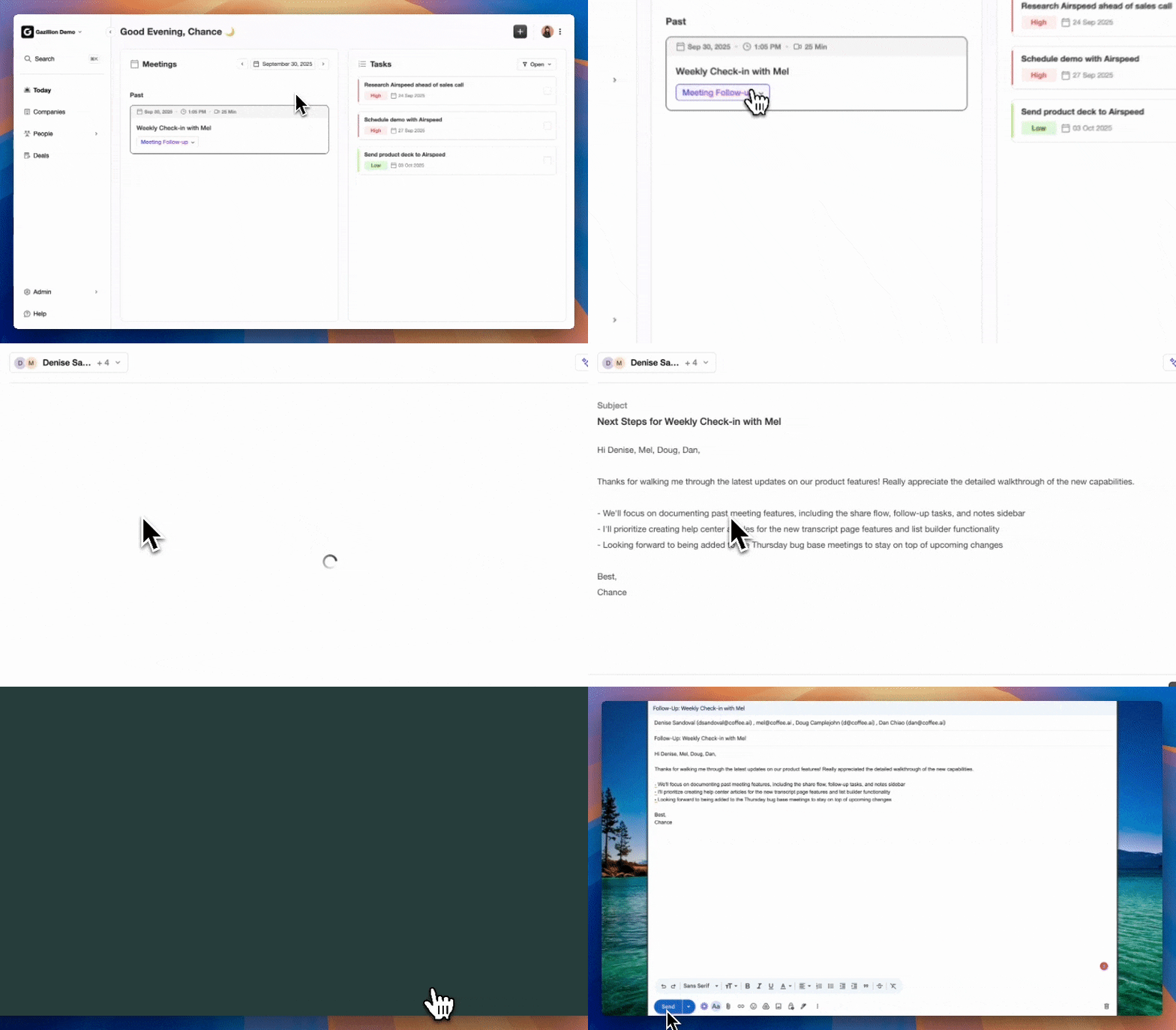
Coffee Companion App replaces that manual layer with an autonomous agent. Every email sent, every meeting held, and every call recorded becomes structured Salesforce data without a rep touching the keyboard. The agent writes contacts, logs activities, enriches company records, and surfaces pipeline changes automatically. Teams that deploy Coffee after cutover recover the hours previously consumed by data entry and enter pipeline reviews with accurate, current data rather than stale records padded with guesswork.
Post-migration, organizations should create a Data Quality Dashboard to monitor health and prevent the garbage-in, garbage-out cycle. Coffee’s Pipeline Compare feature serves exactly that function, surfacing week-over-week changes, stalled deals, and new additions automatically without CSV exports.
Frequently Asked Questions
Is Coffee Companion App secure enough for a Salesforce environment that handles sensitive sales data?
Yes. As mentioned earlier, Coffee is SOC 2 Type 2 certified and GDPR compliant, with the same data-handling standards expected of enterprise SaaS tools. The Companion App connects to your Salesforce org and Google Workspace or Microsoft 365 via standard OAuth authentication. For teams in heavily regulated industries such as healthcare or finance that require multi-year security reviews, Coffee recommends evaluating whether those specific compliance frameworks are met before deployment.
Are there record-volume limits that affect how Coffee works alongside migration tools like SFDMU or Data Loader?
Coffee Companion App is not a bulk-load migration tool and does not have record-volume limits in the same sense as Data Loader or SFDMU. It operates as an ongoing agent layer after cutover, continuously ingesting emails, calendar events, and call transcripts to create and enrich records in real time. For the initial data migration itself, moving historical records from a legacy CRM or another Salesforce org, you would use SFDMU for org-to-org scenarios or Data Loader for high-volume CSV-based loads, then activate Coffee to maintain data quality going forward. The two layers work together rather than competing.
How does Coffee handle relationship mapping between contacts, accounts, and activities when writing data back to Salesforce?
The Coffee agent uses the context of each email, calendar event, or transcript to infer the correct parent record. When an email thread involves a known contact, the agent associates logged activities with that contact’s Account automatically. For new contacts identified from emails or meetings, the agent creates the Contact record and links it to the matching Account based on email domain and existing org data before logging any activities. This mirrors the External ID logic recommended during migration, where every record anchors to a reliable identifier, except Coffee handles the matching autonomously instead of requiring a manual field-mapping exercise.
Conclusion
A clean 60-day Salesforce migration depends on choosing the right tool for your source system and volume, loading objects in the correct parent-to-child sequence, validating thoroughly in a full-copy sandbox, and deploying a CI/CD pipeline that makes future org moves repeatable. Every one of those steps forms the technical foundation. The teams that sustain data quality after cutover are the ones that add an agent layer that removes the human from the data-entry loop entirely.
Salesforce migration automation gets your data into the org. Coffee Companion App keeps it accurate, complete, and actionable from day one of go-live through every deal cycle that follows.