Written by: Doug Camplejohn, CEO & Co-Founder, Coffee | Last updated: September 16, 2026
Key Takeaways
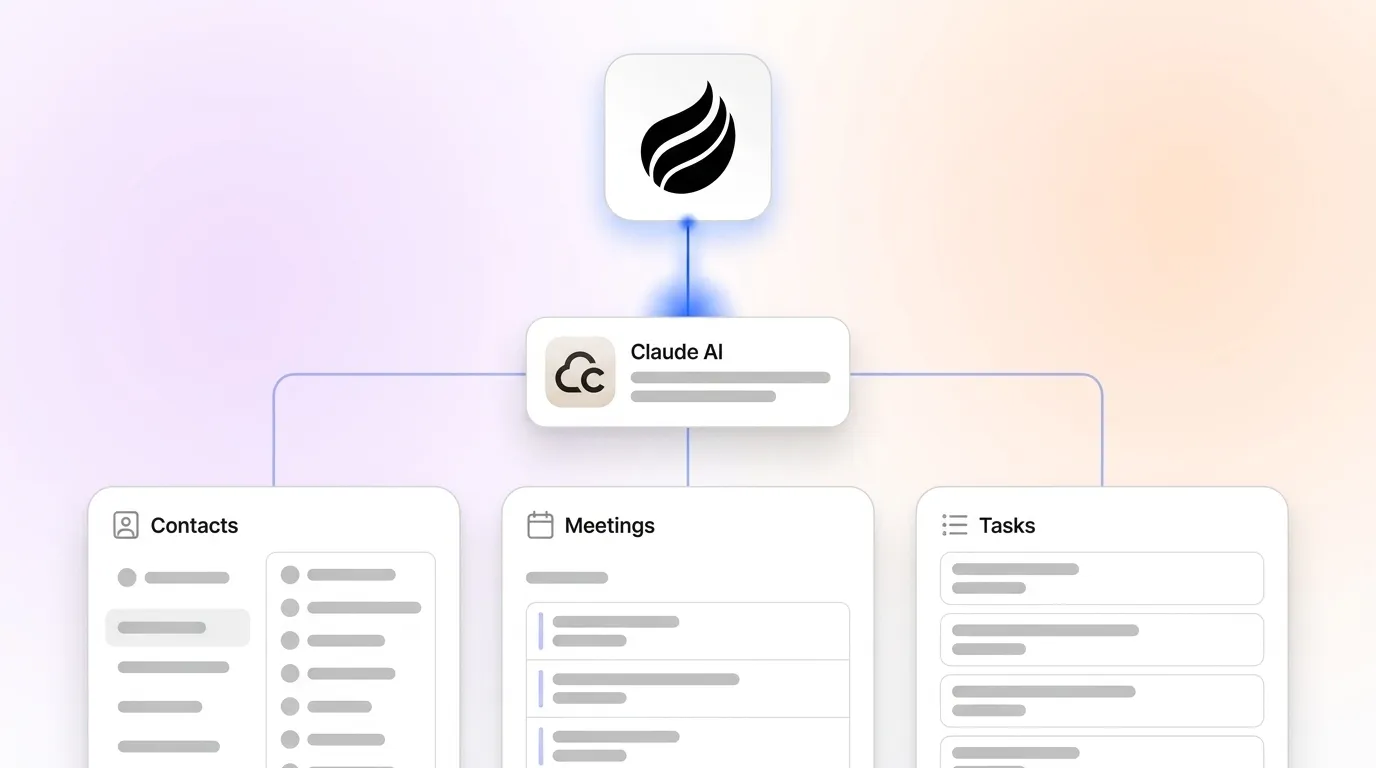
- Claude AI connects to your tools through three main paths: Native Connectors, Model Context Protocol (MCP), and the Anthropic API.
- Native Connectors give you a fast 5–15 minute, no-code setup for Gmail, Google Drive, Slack, and Microsoft 365.
- MCP supports advanced integrations with Salesforce, HubSpot, and 400+ additional data sources when native connectors are not available.
- The Anthropic API path needs developer time but lets you embed Claude directly into custom applications and internal tools.
- Accurate CRM data is essential for reliable Claude AI results, because every answer depends on the quality of the records Claude reads.
Before You Start: Plans, Access, And Roles
Every integration path starts with the same basics. You need an active Claude account and admin access to the apps you want to connect.
For all paths:
- An active Claude account (Free, Pro, Max, Team, or Enterprise). Anthropic’s plan comparison shows Free at $0, Pro at $20/month, Max 5x at $100/month, and Max 20x at $200/month.
- Admin access to the target app such as Google Workspace, Microsoft 365, Slack, or your CRM.
The API path adds two extra requirements on top of those shared basics.
For the API path only:
- A developer environment with Node.js 18+ or Python.
- An Anthropic API key from the Anthropic Console.
Each path has a different owner and time commitment. Native Connectors usually sit with a RevOps lead or end user and take minutes. MCP setup typically belongs to a RevOps lead or IT admin and takes 30–120 minutes, depending on the bridging service. The API path is owned by a developer and requires engineering time measured in hours or days.
Some connectors require paid Claude plans, and managed Team or Enterprise workspaces may need admin approval before users can connect specific tools.
Path 1: Native Connectors For Fast No-Code Setup
Native Connectors are Anthropic’s built-in integrations, powered by MCP behind the scenes, that let Claude read from and take actions in supported apps after a quick authentication step.
Use this 2026 UI path to add a connector:
- Open Claude at claude.ai.
- Go to Customize or Settings.
- Select Connectors.
- Click the + icon.
- Choose the app from the directory and complete the OAuth flow.
Anthropic documents connector examples including Gmail, Google Drive, Slack, GitHub, Notion, and Stripe. Many more services are available through MCP. Claude’s single Microsoft 365 connector covers SharePoint, OneDrive, Outlook, and Teams. Optional write tools, including sending or organizing email, managing calendar events, and creating or updating files, become available after administrator consent.
After you add a connector, enable it per conversation. Use the + button at the lower left of the chat interface, choose Connectors, then toggle each configured connector on or off.
Troubleshooting Native Connectors
- Permission denied during OAuth: Confirm you have admin rights in the target app. On Team and Enterprise plans, an Owner must add the connector at the organization level before individual members can connect.
- Connector shows as connected but returns no data: Check that the OAuth scopes granted match what Claude needs. Disconnect and reconnect to re-trigger the permission grant.
- Re-authentication prompts after a password change: This behavior is expected. Re-authenticate via Settings > Connectors. Concurrent Claude sessions can also trigger OAuth refresh races, so keep one active session and reauthenticate via
/mcpor Settings > Connectors.
[Suggested visual: screenshot of the Connectors settings page showing the + icon and a list of connected apps.]
Path 2: Model Context Protocol For Advanced Integrations
In 2026, MCP is the default advanced integration path for cloud-based production agents. It covers apps that do not have a native connector, and Claude lists over 950 MCP servers in its connectors directory. Through MCP, Claude connects to Salesforce, HubSpot, and 400+ additional data sources via third-party MCP connectors.
Follow these steps to add a custom MCP connector on Pro or Max plans:
- Navigate to Customize > Connectors.
- Click +, then Add custom connector.
- Enter the remote MCP server URL, which must be a public HTTPS endpoint.
- Optionally click Advanced settings to specify an OAuth Client ID and OAuth Client Secret.
- Click Add and complete the OAuth authentication flow.
On Team and Enterprise plans, only Owners can add connectors at the organization level via Organization settings > Connectors. After the Owner adds the connector, individual members go to Customize > Connectors, find the entry labeled “Custom,” and click Connect to authenticate. Claude then only accesses data that user is allowed to view.
Free users are limited to one custom connector. Paid plan users can add multiple connectors, with limits based on plan and workspace settings.
Troubleshooting MCP Connectors
- MCP server failing to connect: The server must be reachable over the public internet from Anthropic’s IP ranges. Servers behind a VPN, private network, or firewall will fail. Allowlist Anthropic’s egress range, 160.79.104.0/21 as of July 2026, in your firewall or WAF.
- OAuth discovery failures: Confirm the MCP server returns a 401 with a
WWW-Authenticatechallenge on unauthenticated requests and that protected resource metadata is served at the correct/.well-known/path. - Cross-host redirects dropping the Authorization header: Register the final MCP URL directly instead of an apex or vanity domain that redirects to a different host.
[Suggested visual: simple MCP architecture diagram showing Claude → Anthropic cloud infrastructure → remote MCP server → target app such as Salesforce or HubSpot.]
Path 3: Anthropic API For Custom Applications
Use these basic setup steps:
- Install the SDK with
pip install anthropicfor Python ornpm install @anthropic-ai/sdkfor Node.js. - Set the
ANTHROPIC_API_KEYenvironment variable using your key from the Anthropic Console. - Make a first API call using the Messages API with your chosen model identifier.
Security Warning: Keep API keys out of frontend or client-side code. Store keys only on the backend. Rotate any key that appears in a browser bundle or public repository immediately.
For deeper reference, review Anthropic’s official API release notes, which are updated several times a week. For enterprise deployments that need AWS-native endpoints, billing, and IAM authentication, Claude Platform on AWS launched May 11, 2026 as a distinct alternative to partner-operated Amazon Bedrock with same-day API parity. The AnthropicBedrock SDK supports the Bedrock path for teams already in the AWS ecosystem.
Troubleshooting The Anthropic API
- API key exposed in client-side code: Rotate the key immediately in the Anthropic Console and move all API calls to a server-side layer.
- Authentication failures (401): Confirm the key is exported in the correct shell environment by running
echo $ANTHROPIC_API_KEY. A stray environment variable in a different shell session often causes this error. - 403 or “model not available”: Confirm the model ID is current. Retired model IDs return hard errors, so any tool pinned to a retired dated model ID stops working on the retirement date.
Whichever path you choose, setup covers only half of the work. You still need to confirm that Claude is pulling the right data and behaving as expected.
How To Verify Your Claude AI Integration Is Working
Verification ensures Claude is connected correctly and using the right context before you trust it with pipeline decisions.
- Ask Claude about recent emails, calendar events, or CRM records from the connected app and confirm the answers match reality.
- Check that connectors show as active and authenticated in Settings > Connectors.
- Invoke MCP tools in a conversation and confirm they respond without errors.
- Inspect API responses and confirm the model, status codes, and token counts match your expectations.
Teams that use Claude to read or write CRM data should also confirm that data written back to the CRM is accurate and that manual data entry time has dropped. When Claude surfaces stale or incorrect CRM records, the root cause almost always lives in the source data rather than the integration. Coffee focuses specifically on that data-quality problem.
See how Coffee keeps CRM records clean so Claude always reads accurate information.
Scaling Your Claude AI Integration Across Team Sizes
The right integration path changes as your team grows and your stack becomes more complex.
- Solo founders and teams of 1–5: Start with Native Connectors for Google Workspace or Microsoft 365. The no-code setup takes minutes and covers common workflows such as email context, calendar briefings, and document access.
- Growing teams of 5–50: Add MCP for CRM access via Zapier or Composio. This approach covers Salesforce and HubSpot without engineering resources. On Team plans, Owners manage connector availability centrally.
- Engineering-led teams and mid-market companies: Build on the Anthropic API for custom applications, internal tools, or bespoke pipeline intelligence. Anthropic’s Managed Agents, launched in public beta April 2026, provide a server-managed agent harness for long-running agentic workflows.
- Enterprise: Claude on Amazon Bedrock or Claude Platform on AWS provides AWS-native endpoints, IAM authentication, and AWS billing. Microsoft began rolling out Claude Fable 5.1 to eligible Copilot Cowork and Copilot Studio users on September 1, 2026, which gives Microsoft-native enterprises another path to Claude inside their existing stack.
Managed workspaces on Team and Enterprise plans may require admin approval before connectors become available to individual users, and connector availability can vary by plan tier.
Conclusion: Connect Claude AI To Clean, Reliable Data
Claude AI integration centers on three clear paths. Native Connectors handle no-code connections to supported apps, MCP covers advanced integrations with tools like Salesforce and HubSpot, and the Anthropic API lets developers embed Claude directly into custom applications. Choose the path that fits your goal, follow the steps above, and verify that Claude returns accurate data before you rely on it for pipeline decisions.
The routing choice is straightforward compared with the data-quality challenge that follows. When CRM records are incomplete, duplicated, or out of date, every answer Claude returns reflects those gaps. Reliable AI depends on a clean, current source of truth.
Coffee is the CRM agent built to maintain that source of truth. It automatically captures contacts, logs activities, enriches records from emails and call transcripts, and writes clean data back to Salesforce or HubSpot. The result is pipeline intelligence that reflects the actual state of your CRM, updated continuously from real customer interactions.
Start automating your CRM data entry with Coffee so Claude can work on top of a clean, trustworthy data foundation.