Written by: Doug Camplejohn, CEO & Co-Founder, Coffee | Last updated: August 25, 2026
Key Takeaways on Stalled Deals and Coffee
- Stalled deals show three clear signals: stage duration above 1.5–2x historical averages, 14–21 day activity gaps, and repeated close-date slippage.
- Native Salesforce reports and Kanban list views surface stalled opportunities when you use custom fields like
Days_In_Stage__candLastActivityDatefilters. - Einstein Opportunity Scoring adds a predictive layer by flagging deals with scores below 40 when combined with stage and activity filters.
- Manual report maintenance becomes unsustainable as teams grow from 10 to 50 users, because thresholds and segments need frequent recalibration.
- Coffee Companion App automates stalled-deal detection across Salesforce and HubSpot, so you can see how it works directly in your pipeline. View Coffee pricing.
How to Define a Stalled Deal in 2026
A stalled deal is an open opportunity that has stopped progressing through the pipeline without being won, lost, or formally disqualified. The definition combines three measurable signals that work together.
Stage duration is the primary signal. A deal spending 1.5x its historical stage-average time in the current stage is a yellow flag, and at 2x it is red. Sales teams should set a stale threshold at 1.5x to 2.0x the median days-in-stage for each stage-segment combination, calculated from closed-won history over the past 12–18 months.
Activity gap is the secondary signal. Sales teams define a no-activity warning when there are no rep or prospect emails or calls for 14 days on deals with sales cycles of 45–60 days, or 21 days for cycles over 60 days. For mid-market sales cycles of 60 to 90 days, the stale threshold is 21 days of zero activity.
Close-date slippage is the third signal. For B2B SaaS companies, 20–30% close-date slippage per quarter is typical, and rates above 40% signal a systemic forecasting or sales process problem. A deal is considered stalled when the close date has been pushed twice in a row with no new stakeholder engaged, no new milestone reached, and no new compelling event identified.
These three signals matter because stalled deals create a measurable drag on pipeline health. 72% of new B2B sales opportunities stall in the middle to late pipeline stages. Deals stalled beyond 28 days in the same pipeline stage show 67% lower conversion rates (14.3% vs. 43.2%). Stalled deals left in the pipeline distort managers’ close probability estimates and reduce forecast accuracy.
Salesforce Readiness Checklist for Stalled-Deal Reporting
Confirm these prerequisites inside your Salesforce org before you build any report or list view.
- Edition: Salesforce Enterprise or Unlimited is recommended. Some advanced reporting features may not be available in Professional edition.
- Object access: The running user must have Read access to the Opportunity object and its related Activity (Task and Event) objects.
- Stage Duration field: A custom formula field,
Days_In_Stage__c, calculated asTODAY() - Stage_Start_Date__c, whereStage_Start_Date__cis a date field populated by a Process Builder or Flow trigger on stage change. - Last Activity Date: Salesforce populates the standard
LastActivityDatefield automatically from logged Tasks and Events. Confirm your team logs activities against Opportunity records, not only against Contact or Account records. - Close Date Slippage field (optional but recommended): A custom number field,
Close_Date_Changes__c, incremented by a Flow each timeCloseDateis updated on an open opportunity.
Step 1: Build a Stuck Opportunities Report in Salesforce
A focused stuck-opportunities report gives managers a weekly view of deals that need attention. Use these filters and columns to build it in Salesforce.
- Navigate to the Reports tab and create a new report using the Opportunities report type.
- Set Show to All Opportunities and Date Field to Close Date with range All Time.
- Add a filter where Stage does not contain Closed Won, Closed Lost.
- Add a filter where Days_In_Stage__c is greater than 30. Adjust this to 21 for SMB pipelines or 45 for enterprise, based on your closed-won stage-velocity data.
- Add a filter where Last Activity Date is less than TODAY()-14. This surfaces opportunities with an activity gap exceeding 14 days.
- Add a filter where Close_Date_Changes__c is greater than 1 to catch close-date slippage of more than one push.
- Group rows by Stage, then sort by Days_In_Stage__c in descending order so the most stagnant deals appear first.
- Add columns for Opportunity Name, Account Name, Owner, Amount, Close Date,
Days_In_Stage__c, Last Activity Date, andClose_Date_Changes__c. - Save the report to a shared RevOps folder and subscribe relevant managers to a weekly email delivery.
Once the report is running, surface one more signal during review: missing next steps. Deals with no documented next step close at 38% of their forecast value, so add a Next Step column to make missing next steps immediately visible and actionable.
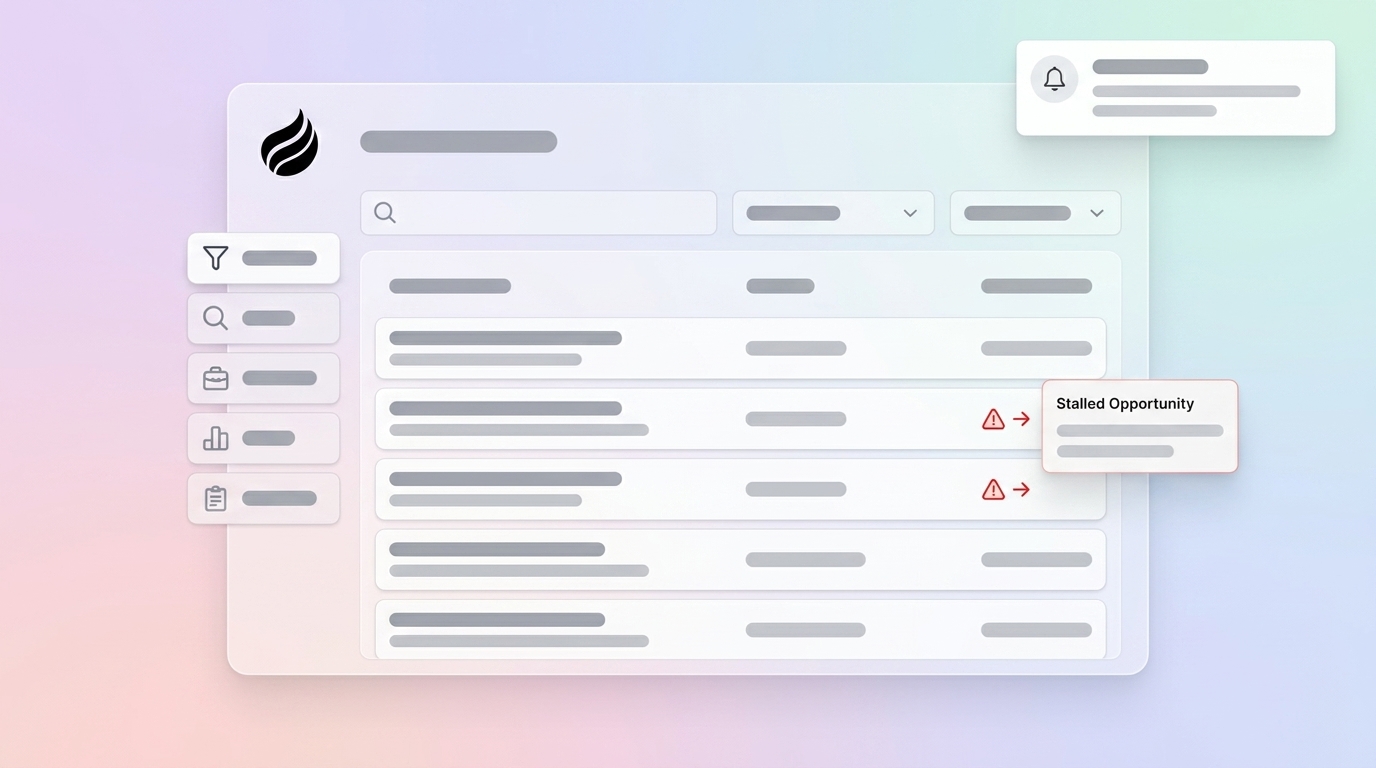
Coffee automates this monitoring. The Coffee Companion App continuously tracks stage duration, activity gaps, and close-date slippage across every open opportunity in your Salesforce org. It surfaces stalled-deal alerts inside Salesforce without a manually maintained report or a weekly subscription email. Try Coffee’s automated monitoring.
Step 2: Use a Kanban List View Sorted by Last Activity
A Kanban list view gives pipeline owners a visual, stage-by-stage snapshot of stuck opportunities without opening individual records. Configure a dedicated stalled-deals Kanban view with these steps.
- Navigate to the Opportunities tab and click the list view selector, then choose New.
- Name the view Stalled Deals – Last Activity and set visibility to All users or a specific RevOps role.
- Add a filter where Stage does not contain Closed Won, Closed Lost.
- Add a filter where Last Activity Date is less than LAST N DAYS:14.
- Add a filter where Days_In_Stage__c is greater than 21.
- Select columns for Opportunity Name, Account Name, Owner, Amount, Close Date, Last Activity Date, and
Days_In_Stage__c. - Save the list view, then click the Kanban icon in the top-right of the list view toolbar.
- In Kanban settings, set Group By to Stage and Summarize By to Amount.
- Sort cards within each column by Last Activity Date in ascending order so the most neglected deals surface at the top of each stage column.
Outreach guidance states that stage age often provides the more actionable signal for pipeline aging than total deal age because it shows where progression has slowed. The Kanban view makes that stage-age signal visible at a glance across the entire pipeline.
Coffee highlights these changes visually. Coffee’s Pipeline Compare feature shows week-over-week changes, highlighting stalled opportunities, progressed deals, and new additions without a manually configured list view. See Coffee’s Kanban-style views.
Step 3: Use Einstein Opportunity Scoring for Risk Signals
Einstein Opportunity Scoring is available on Salesforce Enterprise, Performance, and Unlimited editions with Sales Cloud Einstein enabled. It assigns each open opportunity a score from 1 to 99 based on historical patterns in your org’s closed-won and closed-lost data.
Enable Einstein scoring, then layer it on top of your stalled-deal filters to focus on the riskiest deals first.
- Navigate to Setup > Einstein Sales > Opportunity Scoring and click Enable.
- Allow 24–48 hours for the initial model to train. Salesforce requires at least 1,000 Leads in the past 6 months and 120 conversions before Einstein Lead Scoring enables. Orgs with fewer than 40 closed-won and 40 closed-lost opportunities should rely on the rules-based filters from Steps 1 and 2 instead.
- Add the Opportunity Score and Score Change fields to your Opportunity page layout and list views.
- Filter your stalled-deals report from Step 1 to include Opportunity Score less than 40 as an additional condition. This intersects low Einstein scores with stage-duration and activity-gap signals for higher-confidence flags.
- Use the Score Factors panel on each opportunity record to see which signals, such as no recent activity, stagnant stage, or missing stakeholders, are driving the low score.
Einstein Opportunity Insights can provide deal-at-risk alerts for signals like no recent activity or stagnant deal stage. Use those at-risk flags as a triage layer on top of the stage-duration and activity-gap filters built in Steps 1 and 2.
AI-identified risk flags such as low engagement, stale stage, or missing stakeholder predict pipeline failure 2–4 weeks in advance with 84% accuracy.
Coffee strengthens Einstein’s data. Coffee’s Companion App works alongside Einstein scoring, enriching Salesforce records with activity data captured from email and calendar so Einstein’s model trains on complete, accurate engagement history rather than gaps left by manual logging.
Common Salesforce Pitfalls That Hide Stalled Deals
Three recurring issues often weaken stalled-deal reports in Salesforce orgs.
- Missing activity data:
LastActivityDateonly updates when Tasks or Events are logged directly against the Opportunity record. Activities logged only against the Contact or Account do not update the Opportunity’s last activity date. Audit your team’s logging behavior and update any automation or email-to-Salesforce rules to associate activities with the Opportunity. - Rep overrides of system fields: Pipedrive’s rotting feature can flag deals idle beyond a configured period, but a wide range of record updates including email activity can reset that timer, meaning a recently touched opportunity can still be commercially stagnant. The same risk applies in Salesforce. A rep updating the Description field resets no meaningful signal. Restrict your filters to buyer-initiated activity fields, not any-field edits.
- Timezone discrepancies: Salesforce stores date-time values in UTC. If your org spans multiple time zones, a filter of Last Activity Date less than TODAY()-14 may behave inconsistently for users in Pacific versus Eastern time zones. Use LAST N DAYS:14 in list view filters, which respects the running user’s locale, and validate report results against a known stalled deal before sharing broadly.
Validate Your Report and Quantify Time Saved
Validate the stalled-deals report against three known opportunities before you roll it out to the broader team.
- The genuinely stalled deal should appear in the report results.
- The actively progressing deal should not appear.
- The recently closed deal should not appear because the Stage filter excludes Closed Won and Closed Lost.
If any of the three validation deals produce unexpected results, review the filter logic and confirm the custom formula fields populate correctly on those specific records.
To measure time saved once the Coffee Agent is live, log the minutes spent building, refreshing, and distributing the manual report each week for four weeks before deployment. Early flagging of at-risk opportunities by AI tools can reduce deal slippage. Use that benchmark alongside your pre-deployment slippage rate to calculate the revenue impact of earlier detection.
Scaling Stalled-Deal Detection from 10 to 50 Users
Manual stalled-deal reports work for small teams but break down as the team grows from 10 to 50 users. Stage-duration thresholds that work for an SMB motion diverge from enterprise thresholds as the rep mix changes. Stale thresholds should be recalibrated quarterly using a company’s own closed-won data rather than relying on external benchmarks alone, applying a lower multiplier of 1.5x for SMB and velocity motions and up to 2x the median for enterprise deals. At 50 users, the recalibration burden mentioned earlier becomes a significant RevOps tax.
For teams running both Salesforce and HubSpot, the Coffee Companion App deploys the same agent layer across both CRM instances. Activity logging, stage-duration monitoring, and close-date slippage detection operate consistently regardless of which system a rep works in, so you avoid maintaining parallel stalled-deal reports in two platforms.
Frequently Asked Questions About Coffee Companion App
How long does Coffee Companion App setup take inside an existing Salesforce instance?
Setup uses a simple OAuth authentication between Coffee and your Salesforce org. Once connected, the Coffee Agent begins syncing data, enriching records, and monitoring pipeline signals immediately. Most teams are fully operational within a single business day, with no custom development or Salesforce admin work required beyond the initial authentication.
Is Coffee SOC 2 Type 2 and GDPR compliant?
Yes. Coffee is SOC 2 Type 2 certified and GDPR compliant. Data ingested by the Coffee Agent is not used to train public AI models. All data processing occurs within Coffee’s secure infrastructure, and the platform supports the requirements of mid-market organizations with standard data governance policies.
What happens to my existing Salesforce data and workflows when the Coffee Agent is added?
The Coffee Companion App operates as an additive layer on top of your existing Salesforce instance. It does not modify your existing page layouts, validation rules, required fields, or workflow automations. The agent reads from and writes back to your Salesforce records, logging activities, enriching contacts, and surfacing pipeline alerts without disrupting any configuration already in place. Your Salesforce org remains the system of record.
Can the Coffee Agent work alongside Einstein Opportunity Scoring?
Yes. Coffee and Einstein scoring are complementary. Einstein’s predictive model depends on complete, accurate activity history to produce reliable scores. Because Coffee automatically logs emails, calendar events, and call transcripts directly against Opportunity records, it fills the activity gaps that cause Einstein scores to degrade over time. Teams using both tools benefit from Einstein’s scoring model trained on richer, more complete data than manual logging alone can provide.
Let an Agent Handle Stalled Deals for You
The native Salesforce methods in this guide, including custom reports with stage-duration and activity-gap filters, Kanban list views sorted by last activity, and Einstein scoring thresholds, give RevOps teams a working solution today. The limitation is maintenance. Gartner’s pipeline management research recommends that sales organizations define inactivity thresholds explicitly in CRM policy rather than leaving the definition to individual rep judgment. Translating that policy into a manually refreshed report requires ongoing RevOps effort every time thresholds change, team size grows, or a new deal segment is added.
The Coffee Companion App replaces that maintenance cycle with a zero-configuration agent. It monitors stage duration, activity gaps, and close-date slippage continuously across every open opportunity in your Salesforce org, surfaces alerts the moment a deal crosses a threshold, and enriches the underlying records so Einstein scoring and pipeline forecasts reflect ground-truth engagement data rather than manual logging gaps.
See how Coffee automates stalled-deal detection in your pipeline.