Written by: Doug Camplejohn, CEO & Co-Founder, Coffee | Last updated: September 26, 2026
Key Takeaways
- A no-data-entry CRM reads email, calendar, and call transcripts, then updates records automatically without manual typing.
- The five core capabilities are reading email and calendar, logging calls, auto-creating contacts and companies, writing activity back to records, and supporting Gmail or Outlook natively.
- Traditional CRMs wait for humans to type data, while no-data-entry systems actively process structured and unstructured information from multiple sources.
- Teams choose along two lines: Gmail or Outlook, and standalone system of record or companion layer on top of Salesforce or HubSpot.
- Coffee covers both deployment models and both mail providers, and it typically saves teams 8–12 hours per week on data entry.
What Is The Simplest CRM To Use?
The simplest CRM to use is the one that requires the least human input. A CRM that reads your Gmail or Outlook inbox, logs calls from Zoom, Teams, or Meet, and writes contacts, companies, and deal state back to the record without anyone typing is simpler than any manual system, because the work happens whether or not you remember to do it. Sales reps spend roughly 25% of their workweek on manual CRM data entry alone, so removing that work category changes the experience of using CRM.
How No-Data-Entry CRM Changes Daily Work
Traditional CRMs wait for humans to enter structured data. A no-data-entry CRM behaves as a proactive system that handles both structured and unstructured information, such as email text, call transcripts, and calendar metadata, and writes it into the record automatically.
Data sources a no-data-entry CRM can read:
- Gmail
- Outlook
- Google Calendar
- Zoom, Teams, and Meet transcripts
What it can auto-create:
- Contacts and companies
- Activities
- Last activity and next activity
- Deal state
What it cannot reliably capture:
- Strategic relationship context, such as knowing a champion was just promoted
- Deal stage judgment, where the rep knows timing or intent that the transcript cannot see
- Qualitative coaching notes
- Account strategy
Deal stage is classified as a low-confidence field requiring rep review because the AI lacks deal-level context that only the rep holds. The mechanism removes typing while the rep keeps control of judgment.
The Decision Fork: Gmail Vs. Outlook, Standalone Vs. Companion
The right recommendation depends on two variables: whether the team runs on Gmail or Outlook, and whether they want a standalone system of record or an agent layer on top of an existing Salesforce or HubSpot instance. No competitor covers this fork clearly, so use the four routes below to place your team.
Gmail + Standalone: You want a system of record that reads Google Workspace natively. Look for automatic contact and company creation from Gmail and Google Calendar, with no separate enrichment subscription. Copper is built exclusively for Google Workspace but offers no native Outlook integration, so it functions as a Gmail-only option.
Gmail + Companion: You are committed to Salesforce or HubSpot and your team lives in Gmail. You need an agent layer that reads Gmail and writes back to your existing CRM without replacing it. HubSpot’s email and calendar integration automatically logs emails and activities to HubSpot’s own CRM records when a rep connects Gmail, which illustrates this companion pattern.
Outlook + Standalone: You run on Microsoft 365 and want Outlook to connect directly. Verify native Outlook and Microsoft Graph support, not a third-party connector, and confirm calendar sync works with your Exchange setup. Pipedrive’s Outlook inbox access requires a third-party add-in rather than a native integration, which becomes a meaningful distinction when you evaluate sync reliability.
Outlook + Companion: You are on Salesforce or HubSpot with Microsoft 365. You need an agent that reads Outlook and writes back to your existing CRM while respecting your existing permission model and required fields. Salesforce’s Einstein Activity Capture does not support shared calendar sync, resource calendars, or delegated calendars, and Gmail integration via Einstein Activity Capture is generally more stable than Outlook integration because of Exchange complexity.
Comparison: No-Data-Entry CRM Options By Mail Provider And Deployment Model
The table below maps each tool against mail provider support and deployment model so you can quickly see which options match your setup.
| Tool | Data Sources Read | Mail Provider Supported | Standalone or Companion Layer |
|---|---|---|---|
| Coffee | Email, calendar, calls (Zoom/Teams/Meet) | Gmail, Outlook (Google Workspace or Microsoft 365) | Both, standalone CRM or companion on Salesforce or HubSpot |
| Salesforce (Einstein Activity Capture) | Email, calendar (contacts already in CRM only) | Gmail, Outlook | Standalone system of record |
| HubSpot | Email, calendar, calls | Gmail, Outlook | Standalone system of record |
| Copper | Email, calendar | Gmail only | Standalone system of record |
| Pipedrive | Email, calendar | Gmail, Outlook via third-party add-in | Standalone system of record |
Which CRM Is Best For Beginners?
The best CRM for beginners is the one that does not require learning a data-entry workflow. For a 1–20 person team, that usually means a CRM that connects to your inbox and calendar on day one, populates itself, and shows you a pipeline you did not have to build by hand. If you are on Gmail, start with a tool that reads Google Workspace natively. If you are on Outlook, verify Microsoft 365 support before you commit, because Outlook CRM sync can connect directly to the mailbox via the Microsoft Graph API, enabling server-level monitoring that Gmail browser-extension integrations cannot match. If you already run Salesforce or HubSpot, add an agent layer rather than migrating.
Checklist To Evaluate Any No-Data-Entry CRM
Use the six questions below as a quick screen for every tool before you book a demo.
- Does it read my inbox and calendar?
- Which mail provider does it support, Gmail, Outlook, or both?
- Does it log calls and transcripts from Zoom, Teams, or Meet?
- Does it enrich records without a separate subscription?
- Does it write back to my existing CRM or replace it?
- What does it miss, and how clearly can the vendor explain that gap?
The final question matters most, because every system has limits and you need a vendor who can describe them plainly.
Where Coffee Fits
Against those six questions, Coffee scores well across capture, enrichment, logging, and deployment flexibility. Coffee is the agent that handles both structured and unstructured data. It works standalone as an AI-first CRM for small teams, or as a companion app on top of Salesforce or HubSpot, and it is the only tool in this comparison that covers both deployment models and both mail providers.
Core automation capabilities:
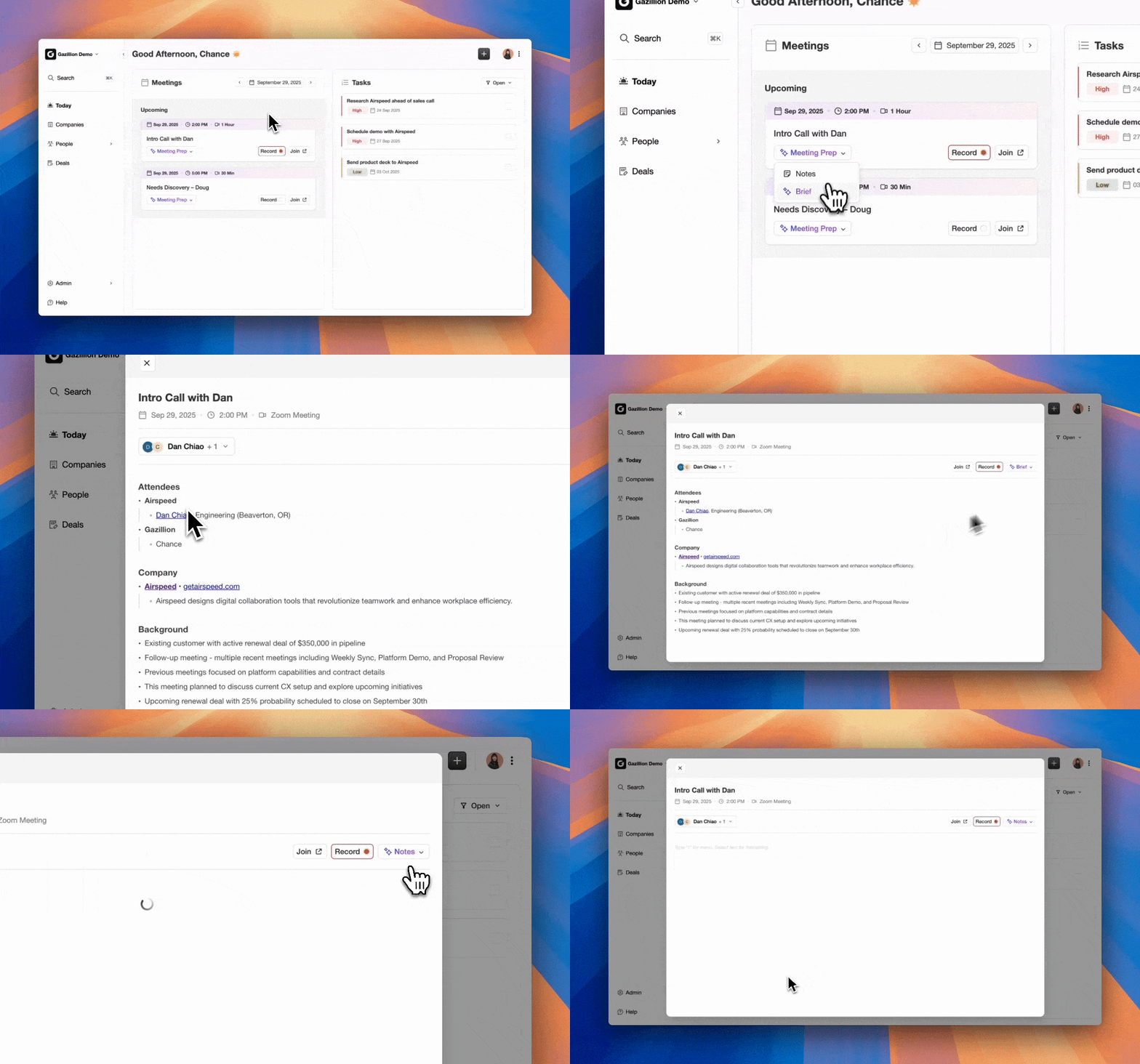
- Automatic contact and company creation from Google Workspace or Microsoft 365
- Activity logging with last activity and next activity updated autonomously
- Meeting briefings and an AI meeting bot for Zoom, Teams, and Meet
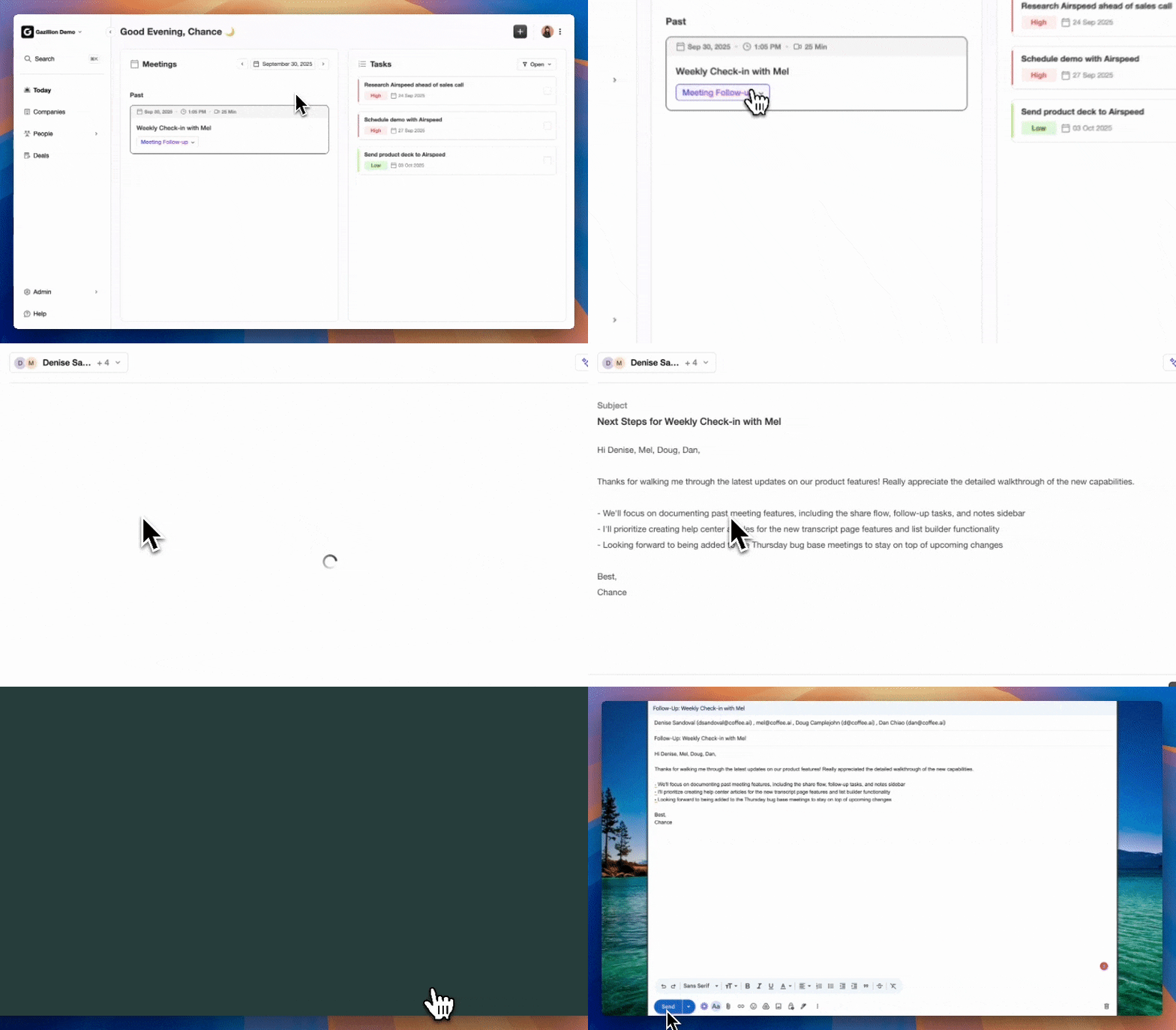
- Automated summaries and follow-ups, with the Companion App writing insights back to Salesforce or HubSpot
Pipeline and prospecting features:

- Pipeline Compare for week-over-week pipeline changes
- Lead Finder for natural-language prospect list building
- Campaigns for multi-step email sequences sent from the rep’s own mailbox
- Visitor Identification that turns anonymous traffic into named leads with Suggested Leads
Security and pricing model:
- SOC 2 Type 2 and GDPR compliant, and data is not used to train public models
- Seat-based pricing with unlimited agent labor included
Coffee typically saves teams 8–12 hours per week on data entry. According to market data shared by Coffee, 71% of sales reps say they spend too much time on data entry, leaving only 35% of their time for selling, so this time savings directly expands selling capacity.
Coffee’s Stripe integration automatically imports customers and companies, enriches them, and adds paid invoices to deals as Closed Won. That workflow shows how Coffee creates CRM records from a data source most CRMs ignore entirely.
Try Coffee As Your Agent Layer
Can I Build A CRM In Excel?
A spreadsheet works in narrow situations and then fails as the team grows. It can handle one or two sellers, roughly 50 active deals, and scenarios with no need for shared pipeline visibility.
It breaks in predictable ways:
- Multiple sellers editing the same file
- Deal history that needs to be preserved instead of overwritten
- Forecasting that requires structured, queryable data
- Email and calendar capture
Excel cannot read your inbox, log your calls, or write deal state back to a record. It acts as a passive container with the same architecture problem as a legacy CRM and none of the automation. CRM data is approximately 30% accurate in a typical organization even with dedicated tooling, and a spreadsheet maintained by hand degrades faster. The moment you have two sellers or need to forecast, a spreadsheet becomes the bottleneck.
Will AI Replace CRM Data Entry?
AI agents already handle most CRM data capture work that previously required human typing. They reliably cover four areas.
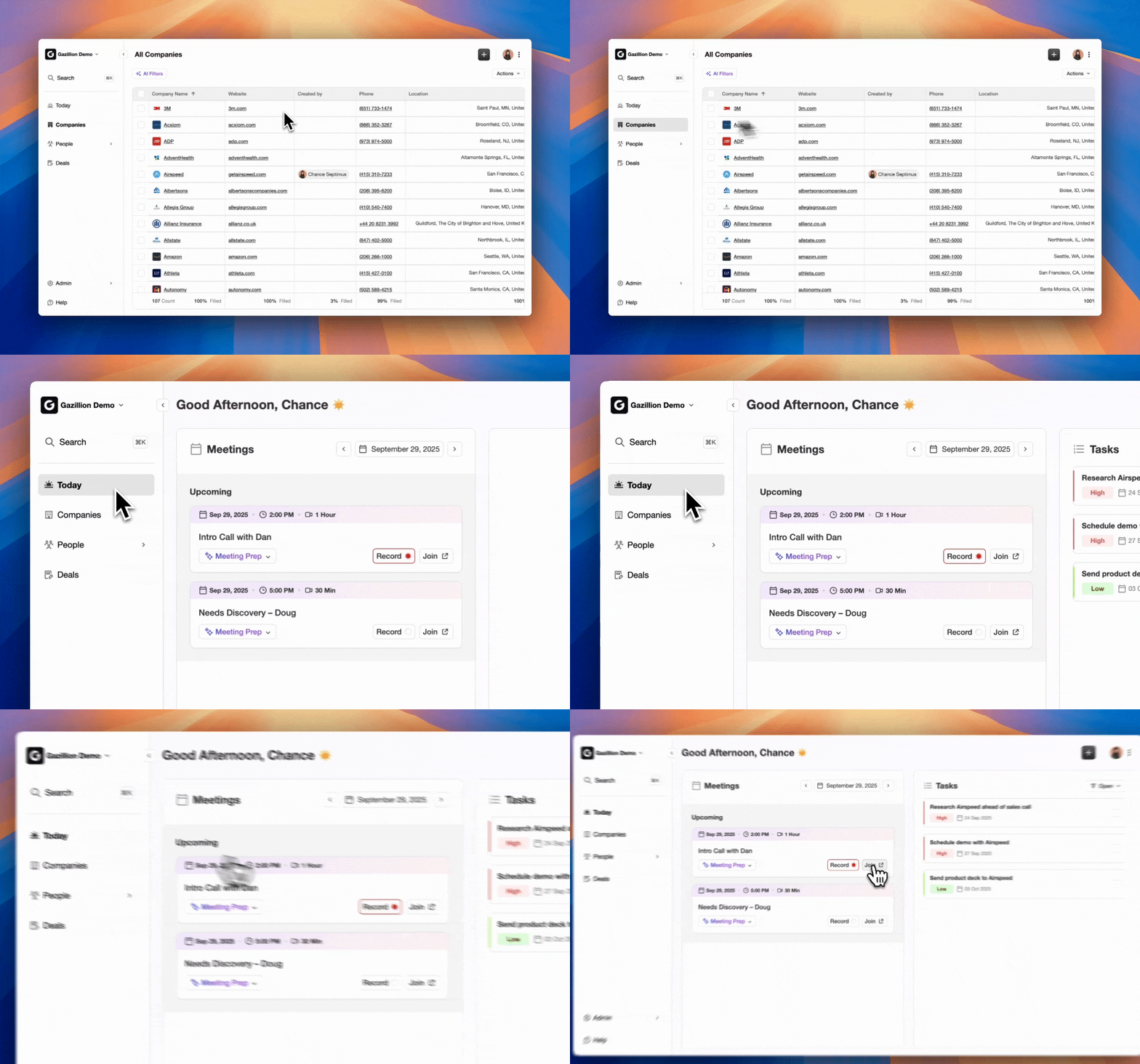
- Capture, by reading email, calendar, and call transcripts
- Enrichment, by populating job titles, company data, and LinkedIn profiles
- Logging, by writing activity records without rep input
- Summaries, by generating post-call notes and follow-up drafts
Humans still own the high-context parts of selling.
- Judgment about whether to advance a deal, given context the transcript cannot see
- Relationships, including executive engagement, negotiation, and trust-building
- Closing, where decisions still require a person
Automated call-to-CRM update compresses post-call documentation from a 20–30 minute manual reconstruction into a 3–5 minute review-and-confirm workflow. AI replaces the typing while the rep keeps control of the relationship. Reports across vendor and analyst research land between 8–12 hours per rep per week saved by AI agents, which redirects roughly 17–27% of the working week from admin to selling.
Frequently Asked Questions
What Is The Simplest CRM To Use?
The simplest CRM to use is the one that requires the least human input. A CRM that connects to your inbox and calendar, logs calls automatically, and writes contacts and deal state without anyone typing is simpler than any manual system, because the work happens whether or not you remember to do it. For most small teams, that means an AI-native CRM or an agent layer on top of an existing system.
Which CRM Is Best For Beginners?
For a 1–20 person team, the best CRM for beginners is one that populates itself from day one. Connect your Gmail or Outlook account, and the CRM should start creating contacts, logging activities, and building a pipeline without requiring a data-entry workflow. If you already use Salesforce or HubSpot, adding an agent companion layer is faster than migrating to a new system of record.
Is There A Free CRM I Can Use?
Several CRMs offer free tiers, including HubSpot’s free CRM and Zoho CRM’s free plan for up to three users. While free CRM tiers typically cover basic contact and deal management and limit or exclude automatic email and calendar sync, AI enrichment, and call logging, some free plans, such as Attio’s, include real-time email and calendar sync and automatic enrichment, and a few others include basic email sync or calling. For teams that need no-data-entry functionality, a paid plan is generally required to access the automation features that remove manual entry.
Can I Build A CRM In Excel?
A spreadsheet works for one or two sellers with fewer than roughly 50 active deals and no need for shared pipeline visibility. It breaks when you add a second seller, need deal history, or want to forecast. Excel cannot read your inbox, log calls, or write deal state back to a record, so it stays a passive container that requires a human to update every field manually.
Will CRM Be Replaced By AI?
AI will not replace CRM and instead will replace the manual labor that makes CRM painful. The system of record still needs to exist, and the change comes from who maintains it. AI agents handle capture, enrichment, logging, and summaries. Humans retain judgment, relationships, and closing. The CRM becomes more useful when an agent keeps it current without rep effort.
Conclusion: Choosing A Definitive No-Data-Entry CRM
Manual CRM data entry consumes a large share of the sales week and rarely stays accurate. Sales reps spend roughly 25% of their workweek on manual CRM data entry alone, and 71% of reps say they spend too much time on it, leaving only 35% of their time for selling. The practical fix is a system that reads your email, calendar, and calls and writes records automatically so the database stays current without constant reminders.
Coffee delivers that pattern across both Gmail and Outlook and across standalone and companion deployments. It supports Gmail and Outlook and logs calls from Zoom, Teams, and Meet. It enriches records without a separate subscription and writes everything back to the system of record, whether that system is Coffee itself or an existing CRM your team already runs. Coffee is SOC 2 Type 2 and GDPR compliant and uses a seat-based pricing model with unlimited agent labor included. That 25% of the workweek lost to manual entry, mentioned earlier, is the problem Coffee targets directly.