Written by: Doug Camplejohn, CEO & Co-Founder, Coffee | Last updated: August 21, 2026
Key Takeaways for Cleaner Salesforce Pipeline Data
Accurate CRM data is the foundation for reliable Salesforce Pipeline Inspection and Einstein forecasting, yet 76% of organizations report that less than half their data meets this standard.
Automated activity capture from email and calendar sources closes the manual logging gap that creates forecast blind spots and wastes hours in deal review.
Stage-exit criteria and validation rules enforced by an autonomous agent keep pipeline data honest and stop reps from advancing deals without required qualification fields.
Once clean data flows into Salesforce, Pipeline Inspection and Einstein Opportunity Scoring provide immediate visibility and measurable forecast accuracy gains within weeks.
Start improving your pipeline intelligence today with Coffee, and book a 15-minute setup call to see the Coffee Agent live in your Salesforce org.
The Skill Gap Blocking Trustworthy Forecasts
Most RevOps teams do not struggle with analytical sophistication; they struggle with automated Salesforce activity capture. Activity completeness with manual entry is often low, and every call, email, and meeting a rep forgets to log becomes a gap in the record that Pipeline Inspection cannot see and Einstein cannot score. Teams with higher CRM field completion can experience lower forecast error, driven primarily by data completeness rather than model sophistication.
The fields that drive this correlation include last activity date, next step, engagement frequency, and qualification status. All of these fields require complete activity data to populate reliably. Without automated capture, reps fill them inconsistently or not at all, and the forecast becomes directional at best instead of a dependable guide.
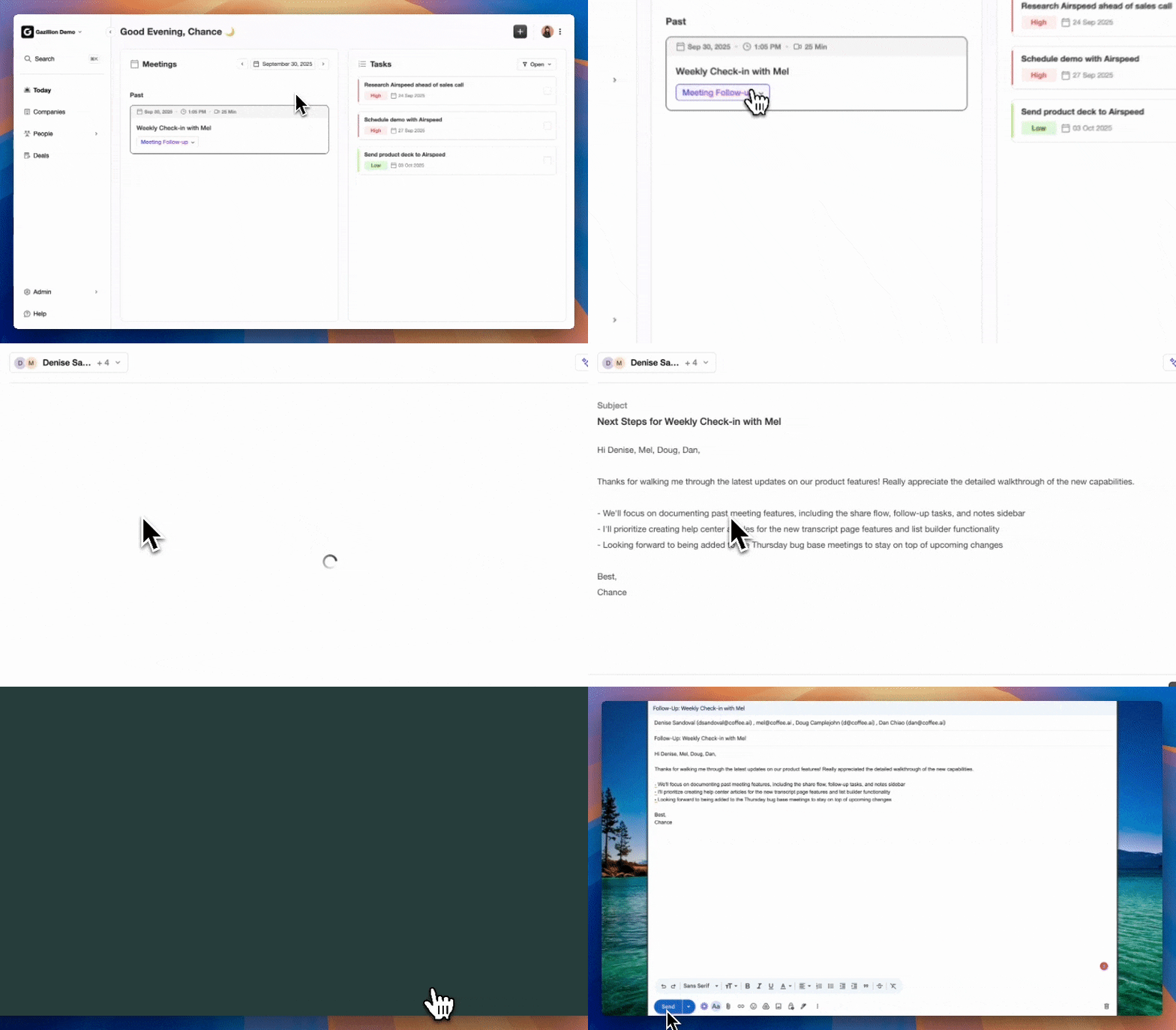
Create instant meeting follow-up emails with the Coffee AI CRM agent
Prerequisites and Time Investment for Coffee Setup
Confirm these prerequisites before you begin configuration.
Salesforce Enterprise or Unlimited edition with Pipeline Inspection and Einstein Activity Capture enabled
System Administrator or a custom profile with Modify All Data and Manage Connected Apps permissions
Google Workspace or Microsoft 365 tenant with OAuth consent for third-party app connections
Basic familiarity with Pipeline Inspection column configuration and Einstein forecast categories
You can complete configuration across all five phases efficiently. The return is several hours saved per rep per week on manual activity logging, which aligns with the 5–10 hours per rep per week cited later in the Weflow data and compounds across the entire sales team from day one.
Phase 1: Connect the Coffee Companion App to Salesforce via OAuth
Navigate to coffee.ai/pricing, select the Companion App plan, and create your organization account.
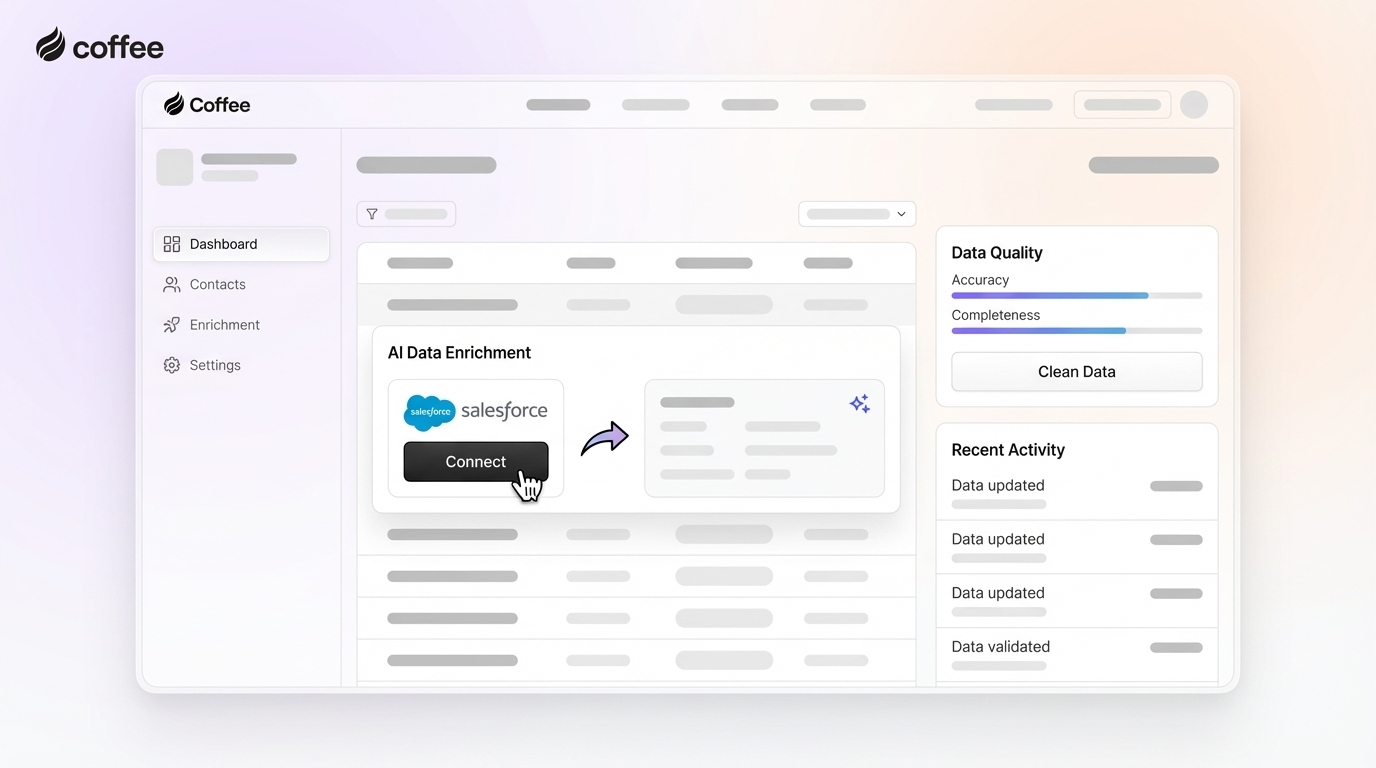
In the Coffee dashboard, open Integrations → Salesforce and click Connect via OAuth.
Authenticate with your Salesforce System Administrator credentials and grant the requested scopes for read and write access on Contacts, Leads, Accounts, Opportunities, Tasks, and Events.
Select your target Salesforce environment, either production or sandbox, and confirm the connection. Coffee displays a green status indicator within 30 seconds.
In Salesforce, navigate to Setup → Connected Apps → Coffee Companion and verify that the OAuth policy is set to Admin approved users are pre-authorized.
Coffee Advantage: Native Salesforce connected-app setup often requires manual field mapping across every object type. Coffee’s OAuth flow activates a single toggle that maps standard Salesforce objects automatically, so you avoid custom field configuration at this stage.
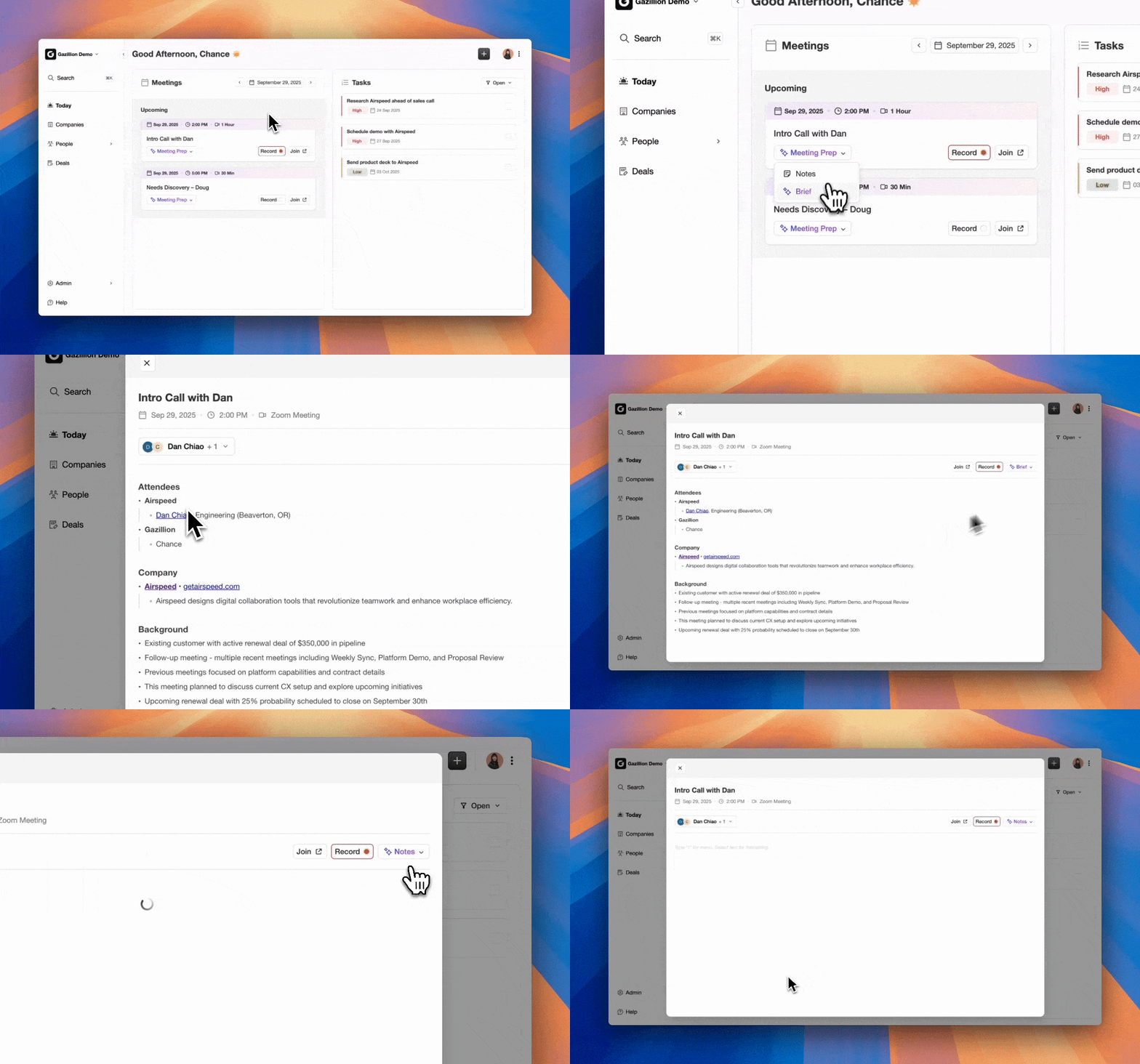
Automated meeting prep with Coffee AI CRM Agent
Pro Tip: Run a duplicate-check report on Contacts and Leads filtered by email address before you activate the connection in production. Coffee’s agent matches incoming activity to existing records by email domain, and pre-existing duplicates can cause the agent to write activity to the wrong record. Resolve duplicates first using Salesforce’s native Duplicate Management or a dedicated deduplication tool.
Phase 2: Map Email and Calendar Sources for Automatic Activity Capture
In Coffee, open Integrations → Email & Calendar and connect your Google Workspace or Microsoft 365 tenant using the OAuth flow.
Enable Auto-Create Contacts so Coffee scans inbound and outbound email threads and creates net-new Contact records in Salesforce for any email address not already present.
Enable Activity Auto-Log so every sent and received email, accepted calendar event, and completed meeting is written to the corresponding Salesforce Contact, Account, and Opportunity as a Task or Event record.
Set the Activity Lookback Window to 90 days so historical emails and meetings populate immediately and give Pipeline Inspection accurate last-activity dates from day one.
Enable Next Activity Date Sync so Coffee reads accepted future calendar events and writes the date to the Opportunity’s Next Step Date field automatically.
Pro Tip: After the 90-day backfill completes, run a Pipeline Inspection report filtered by No Activity in Last 30 Days. Any open Opportunity surfaced here likely has a missing Opportunity Contact Role. Add the primary contact to each flagged deal so future activity logs correctly.
Phase 3: Define Stage-Exit Criteria and Validation Rules Coffee Enforces
In Salesforce Setup, open Object Manager → Opportunity → Validation Rules and create one rule per stage transition. Use ISCHANGED(StageName) combined with ISBLANK() checks on the fields required to exit each stage.
In Coffee, open Pipeline Rules → Stage Exit Criteria and mirror the same stage definitions. Coffee’s agent surfaces an in-app alert to the rep when a deal is moved without satisfying the criteria, before the Salesforce save is attempted.
Convert any free-text qualification fields such as Competitor, Decision Maker, and Pain Point to restricted picklists so Coffee can read and report on structured values instead of text variants.
Enable Coffee’s MEDDIC/BANT Enforcement toggle. After each meeting, the agent extracts qualification signals from the transcript and proposes field values, and the rep confirms or edits before the record saves.
Phase 4: Turn Clean Data into Action with Pipeline Inspection and Einstein
In Salesforce Setup, enable Pipeline Inspection under Sales Cloud settings and configure columns to include Close Date, Amount, Forecast Category, Last Activity Date, Next Step, and Next Step Date.
Enable Einstein Opportunity Scoring and allow 7–14 days for the model to train on the newly complete activity and field data Coffee has populated.
In Coffee, enable Pipeline Compare. The agent generates a week-over-week diff of every Opportunity and surfaces progressed deals, stalled opportunities, and close-date changes without manual CSV exports.
Schedule a recurring Pipeline Health Report in Coffee to run every Monday morning, delivered to the RevOps Slack channel or email distribution list before the weekly forecast call.
The comparison table below highlights how automation changes core pipeline metrics, from activity completeness to rep time savings, when you move from manual updates to automated data capture.
Phase 5: Keep Pipeline Clean with Stale-Record Flags and Weekly Compare Reports
In Salesforce, create a scheduled Flow that queries all open Opportunities where LastActivityDate < TODAY() - 14 and sets a custom Stale Flag checkbox field to TRUE.
Add the Stale Flag field as a conditional column in Pipeline Inspection so stale deals surface in red without requiring a separate report.
In Coffee, configure Stale Deal Alerts so the agent monitors last-activity dates in real time and sends a Slack or email notification to the deal owner and their manager at the 14-day threshold, with an escalation at 30 days.
Enable Coffee’s Weekly Pipeline Compare report so the agent compares the current snapshot against the prior week, flags close-date pushes, amount changes, and stage regressions, and delivers a structured summary before each forecast call.
Is the Coffee Companion App secure, and does it meet enterprise compliance requirements?
Coffee is SOC 2 Type 2 and GDPR compliant. The OAuth connection to Salesforce uses scoped permissions limited to the objects required for activity capture and field enrichment. Data processed by the Coffee Agent is not used to train public AI models. For organizations in regulated industries, Coffee’s security documentation is available on request before any production connection is established.
What happens to activity data if a rep’s email or calendar is not connected?
Coffee captures activity at the organizational level rather than only at the individual rep level. When a rep’s Google Workspace or Microsoft 365 account is connected, the agent logs all inbound and outbound interactions automatically. If a rep has not connected their account, Coffee flags the gap in the admin dashboard so the RevOps team can prompt connection. For reps who use tools outside the standard email and calendar stack, Coffee supports fallback integrations via Zapier, and deeper native integrations are on the product roadmap.
How long does it take for Einstein forecasts to improve after Coffee is activated?
Einstein Opportunity Scoring requires a training period of 7–14 days after clean activity data begins flowing into Salesforce. Forecast accuracy improvements at the statistical level typically require 60–90 days of clean data accumulation before the model shows measurable gains. Pipeline Inspection improvements appear immediately, because last-activity dates, next-step fields, and stage-exit criteria are populated from day one of Coffee’s activation. Most RevOps teams report that pipeline review quality improves within the first week, even before Einstein’s model fully retrains.
Does Coffee replace Einstein Activity Capture, or do both run simultaneously?
Coffee and Einstein Activity Capture can run simultaneously, and Coffee handles a broader scope. As noted in Phase 2, Einstein Activity Capture manages standard email and calendar sync but cannot process call transcripts or populate custom fields, which is where Coffee’s broader coverage becomes essential. Coffee’s agent processes meeting recordings and transcripts, extracts MEDDIC or BANT signals, and writes structured values to custom Opportunity fields while deduplication logic prevents double-logging of the same activity.
Can Coffee enforce stage-exit criteria without breaking existing Salesforce validation rules?
Coffee’s stage-exit enforcement operates as a pre-save layer within the Coffee interface and surfaces alerts to reps before a stage change is attempted in Salesforce. This approach means Coffee’s enforcement does not conflict with existing Salesforce validation rules and instead reduces the frequency with which reps hit those rules by prompting them to complete required fields first. Existing validation rules remain active and continue to block saves at the Salesforce level as a backstop. RevOps teams can configure Coffee’s criteria independently of Salesforce validation rules, which allows a softer warning in Coffee and a hard block in Salesforce for the same stage transition.
Turn Dirty Pipeline Data into Reliable Intelligence Today
The five phases above address the root cause of unreliable Salesforce pipeline intelligence: incomplete, manually entered data that Pipeline Inspection cannot trust and Einstein cannot score accurately. Phase 1 establishes the authenticated connection that enables Phase 2 to eliminate the activity-logging gap. With complete activity data in place, Phase 3 enforces the stage discipline that keeps pipeline honest, which then allows Phase 4 to activate native Salesforce intelligence tools on a foundation of clean data. Phase 5 maintains that cleanliness automatically, week over week, without ongoing human effort.