Written by: Doug Camplejohn, CEO & Co-Founder, Coffee | Last updated: September 23, 2026
Key Takeaways
- A CRM tracking script for forms captures UTM parameters, click IDs, landing page URL, and referrer at form submission and writes them into the corresponding CRM record.
- The script persists attribution data in localStorage across multi-page journeys and return visits so leads always keep source context.
- Copy-paste JavaScript, a field-mapping table, and platform-specific install paths are provided for WordPress, Webflow, Shopify, and custom HTML sites.
- Verification steps cover browser console checks, network tab inspection, and confirming populated UTM fields on the resulting CRM lead record.
- Coffee replaces manual tracking scripts by identifying visitors and enriching CRM records with accurate attribution data automatically.
The Drop-In CRM Tracking Script For Forms
Place the following block before the closing </body> tag on every page that contains a form. The script reads UTM parameters and click IDs from the URL, captures landing page and referrer, persists the values in first-party storage such as cookies or localStorage, and writes them into matching hidden fields on form submit. Depending on configuration, UTM values may be preserved as first-touch or overwritten with last-touch on each new session.
(function () { var STORE_KEY = 'crm_attribution'; var SESSION_KEY = 'crm_attr_session'; var PARAMS = [ 'utm_source','utm_medium','utm_campaign', 'utm_term','utm_content', 'gclid','fbclid','msclkid' ]; function parseUrl() { var q = {}; location.search.replace(/[?&]([^=&]+)=([^&]*)/g, function(_, k, v) { q[decodeURIComponent(k)] = decodeURIComponent(v.replace(/\+/g, ' ')); }); return q; } function getStore() { try { return JSON.parse(localStorage.getItem(STORE_KEY) || '{}'); } catch(e) { return {}; } } function setStore(obj) { try { localStorage.setItem(STORE_KEY, JSON.stringify(obj)); } catch(e) {} } function isNewSession() { try { if (!sessionStorage.getItem(SESSION_KEY)) { sessionStorage.setItem(SESSION_KEY, '1'); return true; } } catch(e) {} return false; } function capture() { var q = parseUrl(); var store = getStore(); var hasParams = PARAMS.some(function(p){ return q[p]; }); // Always set first-touch if not already stored if (!store.first_touch) { store.first_touch = Date.now(); store.landing_page = store.landing_page || location.href; store.referrer = store.referrer || document.referrer; PARAMS.forEach(function(p){ if (q[p]) store['ft_' + p] = q[p]; }); } // Update last-touch on new session or when new params arrive if (isNewSession() || hasParams) { store.last_touch = Date.now(); store.last_landing_page = location.href; // Merge: only overwrite with non-empty values PARAMS.forEach(function(p){ if (q[p]) store['lt_' + p] = q[p]; }); } setStore(store); } function fillFields(form) { var store = getStore(); var map = { 'utm_source': store['lt_utm_source'] || store['ft_utm_source'] || '', 'utm_medium': store['lt_utm_medium'] || store['ft_utm_medium'] || '', 'utm_campaign': store['lt_utm_campaign'] || store['ft_utm_campaign'] || '', 'utm_term': store['lt_utm_term'] || store['ft_utm_term'] || '', 'utm_content': store['lt_utm_content'] || store['ft_utm_content'] || '', 'gclid': store['lt_gclid'] || store['ft_gclid'] || '', 'fbclid': store['lt_fbclid'] || store['ft_fbclid'] || '', 'msclkid': store['lt_msclkid'] || store['ft_msclkid'] || '', 'landing_page': store.landing_page || '', 'referrer': store.referrer || '', 'first_touch': store.first_touch ? new Date(store.first_touch).toISOString() : '', 'last_touch': store.last_touch ? new Date(store.last_touch).toISOString() : '' }; Object.keys(map).forEach(function(name) { var el = form.querySelector('input[name="' + name + '"]'); if (el) el.value = map[name]; }); } function attachForms() { document.querySelectorAll('form').forEach(function(form) { if (form._crmTracked) return; form._crmTracked = true; form.addEventListener('submit', function() { fillFields(form); }); }); } // SPA: re-capture and re-attach after pushState navigation (function() { var orig = history.pushState; history.pushState = function() { orig.apply(history, arguments); capture(); attachForms(); }; window.addEventListener('popstate', function() { capture(); attachForms(); }); })(); capture(); if (document.readyState === 'loading') { document.addEventListener('DOMContentLoaded', attachForms); } else { attachForms(); } })(); The merge rule is critical. Always merge new non-empty values into the existing attribution object rather than replacing the whole object with the current URL state. Without this rule, a visitor who lands on ?utm_source=google, navigates to a second page with no query string, and submits will have their attribution wiped to blank.
Field-Mapping Table
Use this table to match each hidden input name to the correct CRM field. The example values show how a populated record looks after a tagged visit.
| Field Name | Source | Example Value |
|---|---|---|
| utm_source | URL parameter / localStorage | |
| utm_medium | URL parameter / localStorage | cpc |
| utm_campaign | URL parameter / localStorage | brand_search_2026 |
| utm_term | URL parameter / localStorage | crm+tracking+script |
| utm_content | URL parameter / localStorage | hero_cta_v2 |
| gclid | URL parameter / localStorage | Cj0KCQjw1Om… |
| fbclid | URL parameter / localStorage | IwAR3x… |
| msclkid | URL parameter / localStorage | a1b2c3d4… |
| landing_page | First page URL at session start | https://example.com/demo?utm_source=google |
| referrer | document.referrer at first touch | https://google.com |
| first_touch | Timestamp of first session | 2026-09-23T10:00:00.000Z |
| last_touch | Timestamp of most recent session | 2026-09-23T14:32:00.000Z |
How To Pass UTM Parameters To Hidden Form Fields
Hidden fields are standard HTML input elements with type="hidden" that travel with every form submission without the user seeing or interacting with them. They differ from tracking pixels and cookies because they pass attribution data directly into the form submission payload, so the data arrives attached to the CRM lead record on creation.
Add one hidden input per field. The name attribute must match your CRM field name exactly.
<input type="hidden" name="utm_source" value=""> <input type="hidden" name="utm_medium" value=""> <input type="hidden" name="utm_campaign" value=""> <input type="hidden" name="utm_term" value=""> <input type="hidden" name="utm_content" value=""> <input type="hidden" name="gclid" value=""> <input type="hidden" name="fbclid" value=""> <input type="hidden" name="msclkid" value=""> <input type="hidden" name="landing_page" value=""> <input type="hidden" name="referrer" value=""> <input type="hidden" name="first_touch" value=""> <input type="hidden" name="last_touch" value=""> The script in the previous section populates these fields on the form’s submit event. Use this four-step implementation sequence.
- Copy the drop-in script from the section above.
- Install it before the closing
</body>tag on every page. - Add hidden input fields to each form, matching the field names in the mapping table.
- Submit a test lead and verify UTM fields are populated on the resulting CRM record.
Store both first-touch and last-touch UTMs. First-touch data supports acquisition reporting, while last-touch data supports campaign optimization. Storing only the last URL’s UTMs misattributes leads that return via branded search or direct traffic before converting.
With the field mapping and storage logic in place, the next step is installing the script on your specific platform.
How To Install A CRM Tracking Script On WordPress, Webflow, Shopify, And Custom HTML
The table below shows where to paste the script on each platform and how to confirm that it runs correctly.
| Platform | Insertion Point | Verification Step |
|---|---|---|
| WordPress | Use a header/footer plugin (e.g., Insert Headers and Footers) or add wp_footer hook in functions.php: add_action('wp_footer', 'crm_tracking_script'); |
View page source and confirm the script block appears before </body>. Submit a test form and check the lead record. |
| Webflow | Project Settings → Custom Code → Footer Code. Paste the script block. Publish the site. | Use Webflow’s preview mode, submit a test form, and inspect the resulting CRM record for populated UTM fields. |
| Shopify | Online Store → Themes → Edit Code → theme.liquid. Paste before </body>. |
Load a product or contact page with ?utm_source=test&utm_medium=email appended, submit the form, and confirm values appear in the CRM. |
| Custom HTML | Paste the script block directly before the closing </body> tag in every HTML template that contains a form. |
Open browser DevTools → Console, type JSON.parse(localStorage.getItem('crm_attribution')) after loading a UTM-tagged URL, and confirm the object is populated. |
How To Track Iframe And Embedded Form Submissions
Embedded forms inside a cross-origin <iframe> require a different approach. The parent page cannot read the iframe’s DOM. HubSpot’s newer forms editor renders forms inside an iframe, so the parent page cannot detect submissions via DOM inspection and must listen for postMessage events emitted by the embedded form. The same pattern applies to GoHighLevel, Calendly, and other embedded tools.
The parent page listens for messages from the iframe.
window.addEventListener('message', function(event) { // Always validate origin before processing if (event.origin !== 'https://forms.your-provider.com') return; var data = event.data; if (data && data.type === 'form_submitted') { // Attribution is already in localStorage — read and send to your backend var store = JSON.parse(localStorage.getItem('crm_attribution') || '{}'); // POST store to your CRM endpoint alongside the form data } }); To pass attribution into the iframe before submission, send a message after the iframe loads.
var iframe = document.getElementById('my-form-iframe'); iframe.addEventListener('load', function() { var store = JSON.parse(localStorage.getItem('crm_attribution') || '{}'); // Specify the exact target origin — never use '*' iframe.contentWindow.postMessage( { type: 'attribution', payload: store }, 'https://forms.your-provider.com' ); }); The iframe should validate incoming messages by checking event.origin against a trusted parent origin before processing, and the parent should specify the exact target origin (never '*') when calling window.parent.postMessage(data, origin). Sending to '*' exposes attribution payloads to any page that may have loaded your iframe.
When direct embedding is possible, native HTML embeds allow scripts to interact with the form more easily and provide improved tracking accuracy and greater control over form behavior. If the iframe provider does not support postMessage, redirect users to a first-party thank-you page after submission and capture attribution there from the query string the provider appends.
How To Handle SPA Route Changes
pushState() and replaceState() do not fire the popstate event. popstate fires only for history traversal such as back, forward, or history.go(). This behavior creates two required code paths.
- After Programmatic Navigation: wrap
history.pushStateto callcapture()andattachForms()immediately after the original method executes. - For Back/Forward Traversal: register a separate
popstatelistener that also callscapture()andattachForms().
The drop-in script above already implements both paths. The wrapped pushState handles programmatic navigation such as link clicks within the SPA. The popstate listener handles browser back and forward. In SPAs, router actions that clean the URL remove marketing tracking parameters from the address bar. Failing to cache the initial parameters deletes attribution data and causes conversions to be attributed to direct traffic instead of the original paid campaign. The localStorage persistence in the script above prevents this loss.
Once the script is installed and handling route changes, the final step is confirming that it works end to end.
How To Verify Your CRM Tracking Script Is Working
Verification covers three layers: browser console, network tab, and the CRM record itself.
Browser Console Check: Load any page on your site with test parameters appended, for example ?utm_source=test&utm_medium=cpc&utm_campaign=verify&gclid=testgclid123. Open DevTools → Console and run:
JSON.parse(localStorage.getItem('crm_attribution'))The returned object should contain ft_utm_source: "test", lt_utm_source: "test", and the other parameters.
Network Tab Check: Submit a test form while the Network tab is open. Inspect the form POST payload and confirm the hidden field values are present and match the stored attribution object.
CRM Record Check: Open the lead record created by the test submission and confirm the UTM fields are populated with the expected values. A reliable end-to-end UTM validation workflow has four steps. Load the landing page with a full UTM string. Inspect the hidden inputs in the DOM to confirm they are populated. Submit a test lead, then open the created lead and verify the UTMs landed in the intended fields.
Run the full QA checklist before trusting any attribution report.
- Open the form with test UTM parameters in the URL so the script has data to capture.
- Move through every step of a multi-step form without submitting. This confirms the script persists values across page transitions.
- Refresh the page mid-flow and confirm values survive in
localStorage, which proves the persistence layer works. - Submit a test lead and confirm UTMs are stored on the lead record, closing the loop from browser to CRM.
- Confirm the CRM or webhook receives the same values as the hidden fields so transport does not strip data.
- Submit with marketing consent granted and verify scripts fire correctly under a consented state.
- Submit without marketing consent and verify consent-gated scripts remain inactive.
When To Move Server-Side: Client-Side Vs Server-Side Form Tracking
Lead generation businesses lose 15–30% of form submissions from ad platform tracking due to ad blockers, iOS restrictions, and cookie limitations. Ad blockers can prevent Consent Management Platform scripts from loading entirely, so the consent banner never renders and no consent state is recorded for that session. When the CMP does not load, consent-gated tracking scripts never fire and the UTMs are never captured.
Safari’s Intelligent Tracking Prevention deletes script-writable storage, including localStorage, after seven days of Safari use without user interaction and reduces that window to 24 hours when the landing URL carries a known click-ID parameter such as gclid or fbclid. StatCounter figures for August 2026 put Safari at 29.2% of US traffic and 52.9% of US mobile traffic. That share represents a large portion of most B2B audiences.
GTM Vs. Native CRM Tracking Script: Google Tag Manager adds a configuration layer and a dependency on the GTM container loading before the form fires. A native script installed directly in the page template has fewer failure points. For teams already running GTM, the script above can be deployed as a Custom HTML tag with a trigger on All Pages. For teams without GTM, the native install is simpler and more reliable.
Client-Side Vs. Server-Side Decision Guidance:
- Use client-side tracking when you need browser-observable context such as page views, UTM capture on landing, referrer, user agent, and route changes.
- Use server-side tracking when you need verified events such as confirmed form submissions, CRM lead creation, and offline conversion imports.
- Server-side tracking should complement client-side tracking. Browser context and route changes remain easier to observe in the browser, so a hybrid setup where client-side handles browser context and server-side handles delivery, enrichment, and platform feedback is the practical answer for most B2B SaaS teams.
This technical foundation sets up a working tracking stack. Some teams prefer to avoid maintaining that stack themselves.
The Agent-Led Alternative: Coffee
Every technique in this article addresses the same root problem. Data that should enter the CRM automatically often depends on a fragile chain of client-side scripts, hidden fields, and manual field mapping. Coffee removes that chain entirely.
Coffee is an autonomous CRM Agent that actively manages data entry and enrichment. It automates the data-in problem so teams get accurate data out without maintaining a tracking script.
Visitor Identification replaces the tracking pixel and the attribution script in one step. Drop a single Coffee-generated script into your site’s <head> tag. Coffee immediately begins identifying anonymous visitors by name, title, email, LinkedIn profile, company, pages visited, time on site, and whether it is a first or returning visit. Real-time Slack notifications surface high-fit visitors. One click adds the prospect to Coffee with enrichment pre-filled, ready for a LinkedIn connection request or enrollment in an outbound campaign.
Where competitors like RB2B and Warmly show only the company or raw people lists, Coffee’s Suggested Leads feature uses your buyer persona to recommend which two or three specific people inside the visiting company to contact. It also surfaces their LinkedIn profiles for instant outbound.

Automatic Data Entry And Enrichment means the agent scans emails and calendars to auto-create contacts and companies, enriches records with job titles, funding, and LinkedIn profiles, and logs last and next activity autonomously. The CRM stays current without human effort.
AI-Powered Meeting Management extends the agent into the sales cycle. Coffee’s meeting bot joins Zoom, Teams, and Meet calls, transcribes, generates summaries, action items, and follow-up drafts in Gmail. Notes are structured according to BANT, MEDDIC, or SPICED so consistent qualification data enters the system on every call.
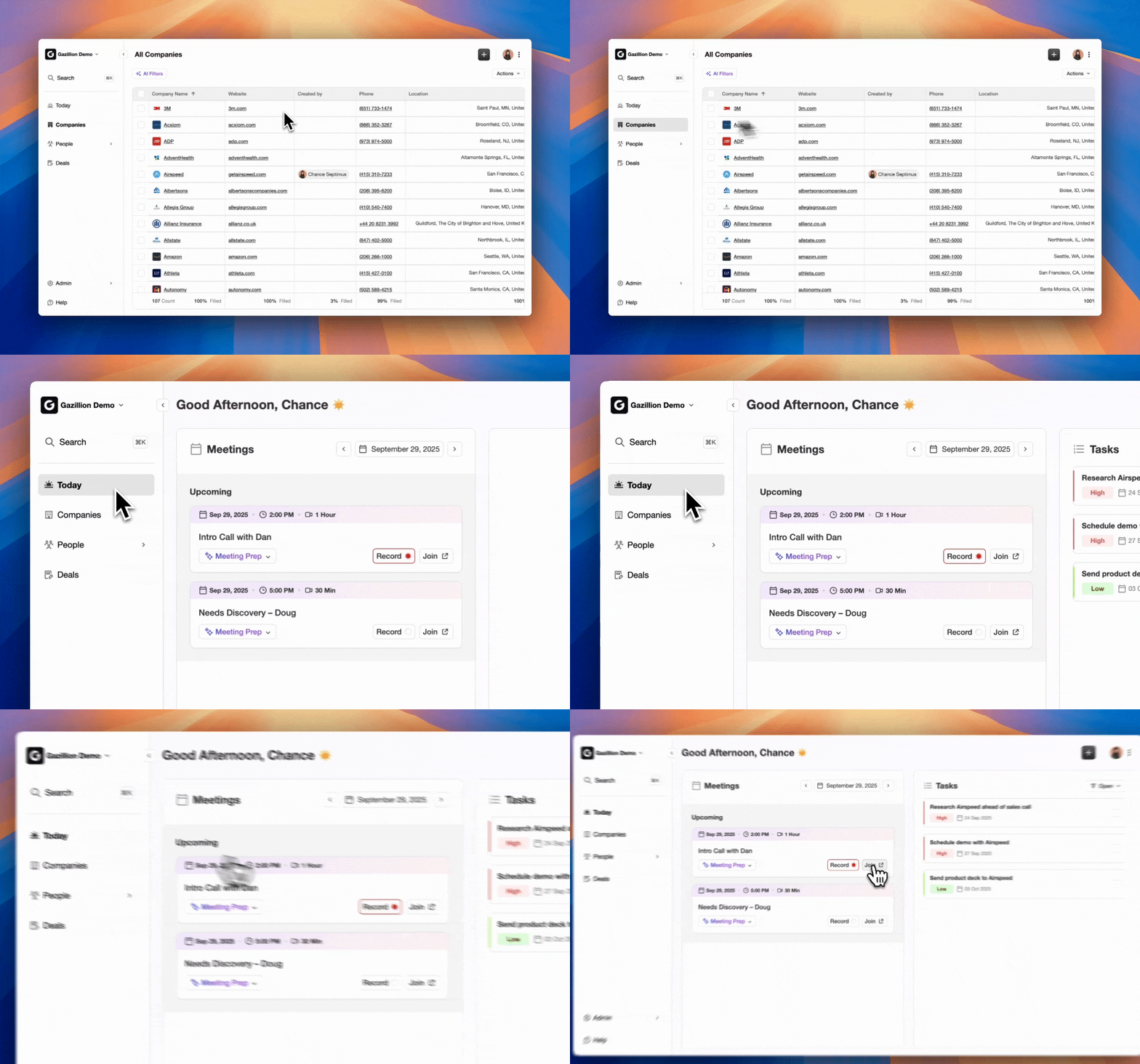
Pipeline Compare visualizes week-over-week pipeline changes without spreadsheets. This view turns pipeline reviews from interrogation sessions into strategic discussions.
Lead Finder And Campaigns close the loop from identification to outreach. Natural language prospect search builds targeted lists from Coffee’s own database. Multi-step email sequences run natively from the rep’s own mailbox with stop-on-reply by default, so no automated email follows a real conversation.

Coffee operates in two models. A Standalone AI-First CRM serves companies with 1–20 employees who have outgrown spreadsheets. A Companion App deploys the agent on top of existing Salesforce or HubSpot instances for small to mid-market teams. Pricing is simple and seat-based, and the agent’s labor is included. Coffee is SOC 2 Type 2 and GDPR compliant, and data is not used to train public models.
Frequently Asked Questions
How Long Does It Take To Set Up A CRM Tracking Script For Forms?
For a single-platform site, CRM Solid’s cookieless tracking script installation itself takes under 5 minutes, though prerequisites such as Content Security Policy errors can extend it to about an hour. The time-consuming part is CRM field architecture. Teams must create dedicated text fields for each UTM parameter and click ID, confirm field names match hidden input names exactly, and test every traffic path. A properly configured implementation with a documented naming convention and a QA checklist is measured in hours, not days. The ongoing maintenance burden stays low once naming conventions are established and the team is aligned. The main recurring task is a monthly audit to confirm the percentage of new leads arriving with populated source fields has not declined.
What Breaks A CRM Tracking Script In Production?
Five failure modes account for the majority of silent production failures of a CRM or GTM tracking script. These are race conditions, consent-gated failures, network-level blocks, cross-domain breakage, and intermittent server errors. GTM Preview cannot detect any of them.
The merge bug described earlier causes one common failure. The script overwrites stored UTM values with blank strings when a visitor navigates to a page with no query string. Iframe cross-origin blocking creates another failure. Forms embedded in a cross-origin iframe cannot be read by the parent page’s DOM, so the fix uses postMessage with origin validation. SPA route changes create a third failure. pushState does not fire popstate, so the script never re-runs on navigation unless it wraps pushState and adds a separate popstate listener. Consent-gated script loading creates a fourth failure. If a CMP blocks the tracking script before the visitor consents, UTMs are never captured for that session. Safari ITP creates a fifth failure. localStorage is deleted after seven days of inactivity and after 24 hours on click-ID landing pages, so returning visitors on Safari may arrive with no stored attribution.
Should UTMs Be Stored In localStorage Or Cookies?
Both options involve tradeoffs. localStorage is simpler to implement and is not sent with every HTTP request, but Safari’s ITP deletes it after seven days of inactivity and after 24 hours on click-ID landing pages. First-party cookies set via an HTTP Set-Cookie response header from your own server are not subject to ITP’s seven-day purge and keep their full stated expiry. That behavior makes server-set cookies the more durable option for longer attribution windows. For most B2B lead funnels where the visit-to-submit journey happens within a single session or a few days, localStorage is sufficient. For sales cycles measured in weeks, a server-set first-party cookie is the safer persistence mechanism.
How Do First-Touch And Last-Touch Attribution Differ, And Which Should The CRM Store?
First-touch attribution assigns credit to the initial interaction that introduced the prospect to the brand. Last-touch assigns credit to the final interaction before conversion. Store both. First-touch fields support acquisition reporting and show which channels fill the top of the funnel. Last-touch fields support campaign optimization and show which campaigns close deals. In a B2B sales cycle of six to eighteen months, last-click attribution alone systematically over-rewards late, demand-harvesting channels and defunds the early-stage work that fills the pipeline. A three-layer model with first-touch fields, last-touch fields, and optionally conversion-touch fields for when a lead becomes an SQL gives a more complete picture without requiring a full multi-touch attribution platform.
Conclusion: Capture, Persist, Map, Verify, Or Let An Agent Do It
The sequence for reliable form attribution is straightforward. Capture UTMs and click IDs on the first page view. Persist them in localStorage using a merge rule that never overwrites stored values with blanks. Write them into hidden form fields on submit. Map those fields to dedicated CRM text fields. Verify the result with a test submission before trusting any pipeline report.
When client-side capture becomes unreliable because of ad blockers, Safari ITP, consent-gated script loading, or cross-origin iframe embeds, server-side form handling becomes the fallback. A hybrid architecture where client-side handles browser context and server-side handles delivery and enrichment is the practical standard for teams with active paid programs.
Teams that have outgrown fragile scripts entirely can hand this work to an agent. Coffee’s agent-led approach captures and structures data at the source. Visitor Identification, automatic contact creation, enrichment, meeting transcription, and pipeline intelligence replace the entire manual data-in stack. The CRM stays accurate without a tracking script, a hidden field, or a monthly audit.
Skip Manual Tracking With Coffee